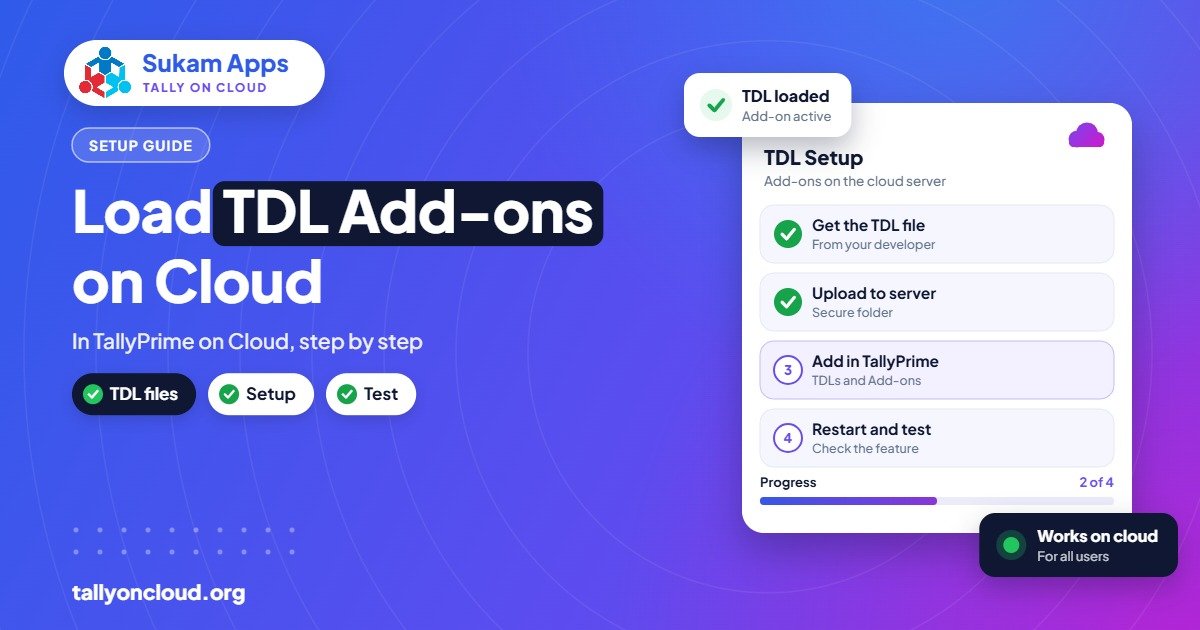
To load a TDL in TallyPrime on cloud, the TDL file first has to be copied to the cloud server (not your own laptop), and then added through Help (F1) > TDLs & AddOns > Manage Local TDLs, with “Load selected TDL files on startup” set to Yes. On a hosted setup, your provider usually places the file in a common folder so it loads for every user at once.
Below we explain the exact steps, why TDLs behave a little differently on a cloud server, and how to fix the errors people run into most often.
What a TDL Does and Why It Matters on Cloud
TDL stands for Tally Definition Language. A TDL file is a small customisation that changes how TallyPrime looks or behaves. Businesses use them for things like:
- A custom sales invoice format with the company’s terms, bank details or a “subject to Ludhiana jurisdiction” line.
- Extra fields on vouchers, such as vehicle number, transporter or broker name.
- Reports that Tally does not provide by default, for example salesman-wise collection or party-wise discount summaries.
- Integrations that push data from Tally to a CRM, a WhatsApp tool or an e-commerce panel.
A common worry when moving to the cloud is “Will my TDLs still work?” The answer is yes, because hosted Tally on Cloud runs the full TallyPrime software on a Windows server. Anything that works on TallyPrime in your office will work on the server, provided the TDL is compatible with your TallyPrime version and is placed correctly.
Local TDL vs Account TDL
Before loading anything, check which kind of TDL you have, because the process is different.
| Type | How it is delivered | How it loads |
|---|---|---|
| Local TDL | A file you receive, usually ending in .tdl, .txt or .tcp | You add its path in Manage Local TDLs |
| Account TDL | Linked to your Tally licence by the developer or partner | Loads automatically when the licensed TallyPrime starts, as configured on your Tally account |
Most small customisations made by a local Tally developer are local TDLs. Paid add-ons from larger developers are sometimes licensed to your Tally serial number, so they only work with that specific licence. If you move to the cloud with the same licence, those continue to work. If you change your licence, ask the developer to update it.
How to Load a TDL in TallyPrime on Cloud: Step by Step
Step 1: Get the file onto the server
This is where most people get stuck. When you connect to Tally on Cloud through Remote Desktop or a browser, TallyPrime is running on the server. The TallyPrime on the server cannot see a file sitting in your laptop’s Downloads folder.
You have three ways to get it there:
- Ask your provider. Send them the TDL file by email or WhatsApp. They copy it to a shared TDL folder on the server. This is the cleanest method, especially when many users need it.
- Use drive redirection. If your Remote Desktop connection shares your local drives, you can copy the file from your local drive to a folder on the server from inside the session.
- Use a shared upload folder, if your provider has given you one.
Do not try to load the TDL directly from a redirected local drive. If your laptop disconnects, the path disappears and TallyPrime will throw an error the next time it starts.
Step 2: Add the TDL in TallyPrime
- Open TallyPrime on the cloud server.
- Press F1 (Help) and choose TDLs & AddOns.
- Press F4 (Manage Local TDLs).
- Set Load selected TDL files on startup to Yes.
- In the list, type the full path of the TDL file on the server, for example D:\TDL\InvoiceFormat.tcp.
- Save with Ctrl+A.
- Go back to the TDLs & AddOns screen and check the status. It should show the TDL as loaded.
Step 3: Test it properly
Open the voucher or report the TDL changes and try it with a test entry. If it changes a print format, print a sample to your local printer to confirm the layout fits your paper. Thermal and dot-matrix printers can show layout differences that a laser printer hides; our guide on printing from Tally on Cloud covers this.
Step 4: Roll it out to all users
On a multi-user cloud server, each user’s TallyPrime session reads its configuration when it starts. If the provider has configured TDLs at a common level, all users get them after reopening TallyPrime. If you added the TDL only in your own session, other users may not see it until it is added for them as well. Ask your provider which way your server is set up.
Common TDL Errors and How to Fix Them
“File not found” or the TDL shows as not loaded
The path is wrong, or the file is on a drive TallyPrime cannot reach. Check spelling, the drive letter and the file extension. Make sure the file is on the server itself.
TDL written for Tally.ERP 9
Many older customisations were made for Tally.ERP 9 and do not run correctly in TallyPrime because the menus and screens changed. You may see errors on startup, or the TDL loads but does nothing. The developer needs to make a TallyPrime-compatible version. If you are still moving off ERP 9, read our ERP 9 to TallyPrime migration guide and list your TDLs before you start.
TDL stopped working after a TallyPrime upgrade
Major releases sometimes change internal definitions that a TDL depends on. Before upgrading, ask your developer whether the TDL is tested on the new version. On a cloud server, a careful provider will test the upgrade on a copy first rather than upgrading the live server blindly.
“Not authorised” or licence-related messages
The TDL is licensed to a different Tally serial number. This happens when an add-on was bought for an old licence. Contact the TDL developer with your current serial number.
Two TDLs conflict
If two customisations change the same voucher or report, one may override the other, or TallyPrime may show errors. Remove one at a time from the list to find the culprit, then ask the developers to adjust.
TallyPrime becomes slow after loading a TDL
Some reports built through TDL calculate a lot of data every time they open. On a cloud server this can affect everyone sharing the machine. Tell your provider; they can check resource usage and, if needed, suggest a larger server or a better-written report.
What Your Tally on Cloud Provider Should Handle
Loading a TDL is not difficult, but on a shared server it is best done by someone who manages the whole machine. A good provider should:
- Keep a common TDL folder on the server so files are not scattered across user profiles.
- Load TDLs for all users of your company in one go, instead of each user doing it.
- Keep a list of the TDLs you use, with version and developer contact, so nothing gets lost when something changes.
- Take a backup before adding a TDL that writes data to vouchers.
- Check compatibility before upgrading TallyPrime to a new release, such as 7.0 or the 7.1 version that is in beta.
Keep in mind that the provider manages the server and the loading. The TDL’s own logic is the developer’s responsibility. If a custom report shows the wrong total, that is a question for the person who wrote it.
A Quick Checklist Before Loading Any TDL
- Confirm it is made for TallyPrime and for your release.
- Know whether it is a local TDL or licensed to your serial number.
- Take a backup of the company. Our Tally backup and restore guide shows how.
- Place the file on the server in the shared TDL folder.
- Add the path, restart TallyPrime and test with a sample entry.
- Inform all users that a new feature is live and show them where it appears.
Frequently Asked Questions
Do TDLs work on Tally on Cloud?
Yes. Hosted Tally on Cloud runs the full TallyPrime on a Windows server, so TDLs that work in your office will work there, as long as they are compatible with your TallyPrime version and the file is on the server.
Where is the TDL option in TallyPrime?
Press F1 (Help), choose TDLs & AddOns, then press F4 for Manage Local TDLs. Set “Load selected TDL files on startup” to Yes and enter the file path.
Can I use my Tally.ERP 9 TDL in TallyPrime?
Often not without changes. TallyPrime’s interface is different, so many ERP 9 customisations need to be updated by the developer before they work correctly.
Why can other users not see the TDL I loaded?
You may have added it only to your own session’s configuration. Ask your provider to load it at a common level, then ask all users to close and reopen TallyPrime.
Who should load the TDL on a cloud server, me or the provider?
You can do it yourself if the file is on the server, but on a shared server it is better to let the provider do it. They can place it in a common folder, load it for every user and take a backup first.
Move Your Tally and Its Customisations to the Cloud
Sukam Apps sets up your licensed TallyPrime on a cloud server, moves your existing TDLs, tests your print formats and trains your team in Hindi or Punjabi. We work on-site across Punjab, Chandigarh Tricity, Haryana, Delhi NCR and Himachal (Baddi, Solan), and support businesses anywhere in India remotely, with a dedicated account manager instead of a call-centre queue. WhatsApp +91 99142 49191 for a free demo, or start from our home page.