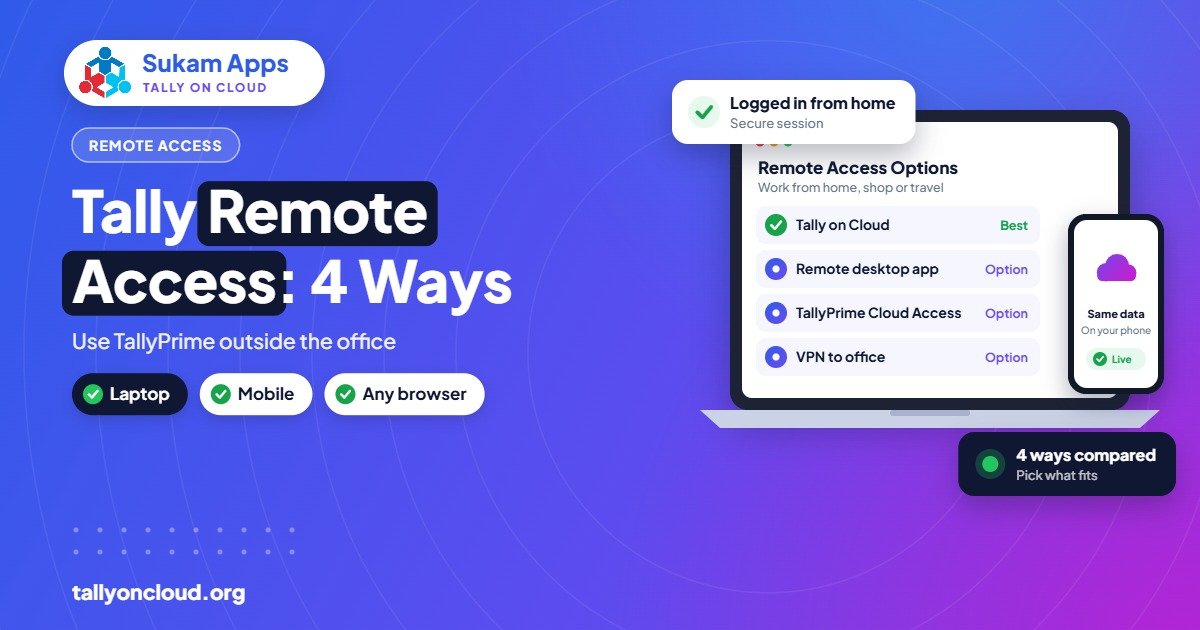
Tally remote access means opening your TallyPrime company data from outside the office, from home, a branch, a client’s place or your phone. There are four common ways to do it: TallyPrime’s built-in remote access through Tally.NET, Tally’s own TallyPrime Cloud Access service, a remote desktop app connected to your office computer, or hosted Tally on Cloud. Each one suits a different kind of business, and picking the wrong one usually shows up later as slow screens, a locked office PC or a data file nobody can open.
This guide explains how each option works, what it needs, and which one fits a typical Indian SME.
Why Businesses Need Tally Remote Access
Most owners start with Tally on one office computer. That works until the owner wants to check outstanding or cash balance while travelling, the accountant wants to finish entries from home, or a second branch opens in another city. At that point, someone is either calling the office for figures or carrying a pen drive with a backup, and both lead to mistakes and old data.
Remote access solves this by letting the right people reach one live set of books from wherever they are.
Option 1: TallyPrime’s Built-In Remote Access (Tally.NET)
TallyPrime lets the licence administrator create remote users with a Tally.NET ID. The company is connected to Tally.NET on the office computer, and an authorised user logs in from another TallyPrime installation to work on that company.
- What you need: an active TSS (Tally Software Services) subscription, a TallyPrime installation at both ends, and the office computer switched on with TallyPrime running and the company connected.
- Good for: owners or auditors who mostly want to check reports now and then.
- Watch out for: if the office PC shuts down, loses power or loses internet, remote users are cut off. Speed depends on the office internet connection.
Option 2: TallyPrime Cloud Access (by Tally)
Tally Solutions offers its own cloud service where TallyPrime runs on Tally’s cloud infrastructure and you access it through a subscription. It removes the need to keep an office computer on, and billing comes directly from Tally or its partners. We have compared it in detail in TallyPrime Cloud Access vs hosted Tally on Cloud.
- Good for: businesses that want an official, standard setup with Tally as the single vendor.
- Check before choosing: how your TDL customisations, add-ons, printing and backups will work, and what local support you will get.
Option 3: Remote Desktop to Your Office Computer
Many small businesses install a remote desktop app such as AnyDesk or TeamViewer on the office PC and connect to it from home or a phone. It is quick to set up and costs little.
- Good for: a single owner who occasionally needs to look at the office screen.
- Watch out for: only one person can control the PC at a time, the PC must stay on all day and night, and an unattended computer with remote access open is a real security risk if passwords are weak. It also does not give you proper multi-user working.
Option 4: Hosted Tally on Cloud
With Tally on Cloud, your licensed TallyPrime and company data sit on a managed cloud server in a data centre. Each user gets their own login and connects from a laptop, Mac, Android phone or iPhone. Everyone works on the same live company at the same time, and the provider looks after the server, backups and updates.
- Good for: businesses with branches, godowns, field staff, work-from-home accountants or CA firms handling several clients.
- What you need: your TallyPrime licence (Gold for multiple simultaneous users) and a reasonable internet connection at each location.
- Watch out for: choose a provider that gives clear per-user pricing, regular backups and someone you can actually call when something goes wrong.
Tally Remote Access Options Compared
| Option | Office PC must stay on? | Multiple users at once | Works on mobile | Best for |
|---|---|---|---|---|
| Tally.NET remote access | Yes | Limited | Needs TallyPrime on the other device | Occasional report checks |
| TallyPrime Cloud Access | No | Yes | Yes | Standard setups wanting Tally as the only vendor |
| Remote desktop (AnyDesk etc.) | Yes | No | Yes, but small screen control | One owner, occasional use |
| Hosted Tally on Cloud | No | Yes | Yes | Branches, remote staff, CA firms |
How to Choose the Right Option
Ask three questions. First, how many people need to work in Tally at the same time from different places? If it is more than one, remote desktop to a single PC will not hold up. Second, can you keep an office computer running and online every day? If not, avoid options that depend on it. Third, do you use TDL customisations, barcode or thermal printers, or other add-ons? Confirm these work before you move. For most growing SMEs in Punjab, Haryana and Himachal, hosted Tally on Cloud ends up the most practical because it removes the office PC from the picture.
Keep Remote Access Secure
- Give every user their own login; never share one password across the team.
- Use TallyPrime security controls so each user sees only the vouchers and reports they need.
- Turn on two-step verification wherever your access method supports it.
- Make sure backups run automatically and that you have tested a restore at least once.
Read more in Is Tally on Cloud safe?
Frequently Asked Questions
Can I access Tally remotely without keeping my office computer on?
Yes. TallyPrime Cloud Access and hosted Tally on Cloud both run TallyPrime on a server, so no office computer needs to stay on.
Can I use Tally remote access on my mobile phone?
Yes. With a cloud setup you can open full TallyPrime through a free remote desktop app on Android or iPhone. See our guide on using Tally on mobile.
Do I need a new Tally licence for remote access?
Usually not. You can keep your existing TallyPrime licence. For several people working at the same time you need a Gold (multi-user) licence, and some features need active TSS.
Is remote access to Tally safe?
It is safe when each user has their own login, access rights are set properly and backups are automatic. Leaving an unattended office PC open to remote desktop with a weak password is the most common risk.
Set Up Tally Remote Access with Sukam Apps
Sukam Apps, Jalandhar, has helped businesses with software since 2011. We set up Tally on Cloud for your team, move your data, train your staff in Hindi or Punjabi and stay available on a dedicated support line. Book a free demo or start a 7-day free trial, or call or WhatsApp 99142 49191.