TallyPrime is built as a desktop application, yet more and more businesses now run TallyPrime on cloud so owners, accountants and branches can work on the same books from anywhere. If you are wondering how that actually works, what you need before you start and how long the move takes, this step-by-step guide covers it in plain language.
What Does “TallyPrime on Cloud” Mean?
Running TallyPrime on cloud means your licensed TallyPrime and your company data sit on a secure server in a data centre instead of on an office PC. Each user logs in from a laptop, desktop or even a phone and sees TallyPrime exactly as if it were installed locally. All entries are saved to the same data on the server, so everyone always works on the latest books.
There are two main routes:
- Hosted Tally on Cloud: a provider such as Sukam Apps hosts your TallyPrime on a managed server. You keep using the same TallyPrime screens, TDLs and reports.
- TallyPrime Cloud Access: Tally Solutions’ own subscription offering. We compare both in TallyPrime Cloud Access vs Tally on Cloud.
This guide focuses on the hosted route, which is what most businesses mean when they search for TallyPrime on cloud.
What You Need Before Moving TallyPrime to Cloud
- A valid TallyPrime licence: Silver for one user at a time, Gold for multiple simultaneous users. See Silver vs Gold.
- Active TSS (recommended): keeps you on the latest TallyPrime release and enables connected features. Read the TSS renewal guide.
- Your company data: a fresh backup of your Tally data folder.
- List of TDLs and add-ons: any custom invoice formats or modules you use.
- User list: who needs access and what each person should be allowed to see.
- A stable internet connection: Tally on Cloud needs far less speed than most people expect. See internet speed for Tally on Cloud.
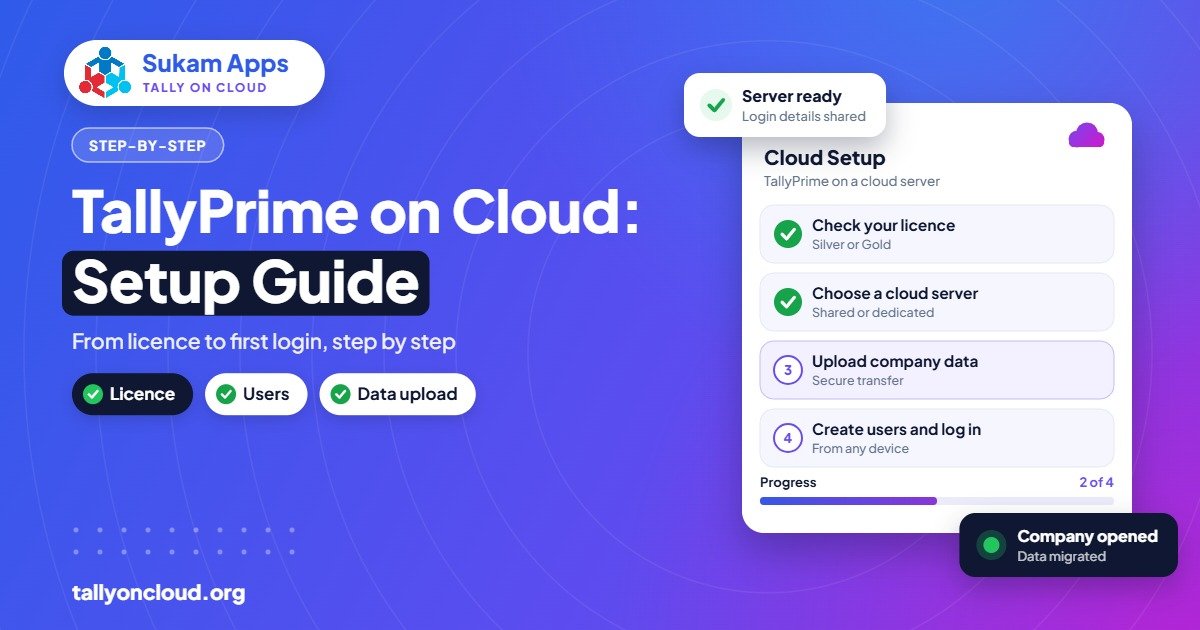
How to Set Up TallyPrime on Cloud: Step by Step
Step 1: Take a clean backup
In TallyPrime, take a full backup of every company. Note the TallyPrime release you use today so the cloud server runs the same or a newer version. Our backup and restore guide shows the exact steps.
Step 2: Choose your plan and user count
Decide how many people will work in Tally at the same time. That number decides your licence (Silver or Gold) and your hosting plan. Current Sukam Apps plans are on the pricing page.
Step 3: Server setup and data upload
The provider prepares a secure server, installs TallyPrime, activates your licence and restores your data. Any TDLs are loaded and tested with your actual invoices. If you use custom TDLs, see how TDLs work on Tally on Cloud.
Step 4: Create user logins and access rights
Each person gets an individual login. Use TallyPrime security controls so a data-entry operator does not see what the owner sees. Separate logins also mean the edit log shows who changed what.
Step 5: Connect printers and test daily work
Print a sales invoice, a delivery challan and a report from each user’s computer. Check barcode or thermal printers if you use them. Test GST returns, e-invoice and e-way bill generation if they are part of your routine.
Step 6: Train staff and go live
Spend 30 minutes with each user on how to log in, where files are saved and how to print. Then choose a clean cut-over date, usually the start of a month, and stop entering data in the old office copy.
Benefits of Running TallyPrime on Cloud
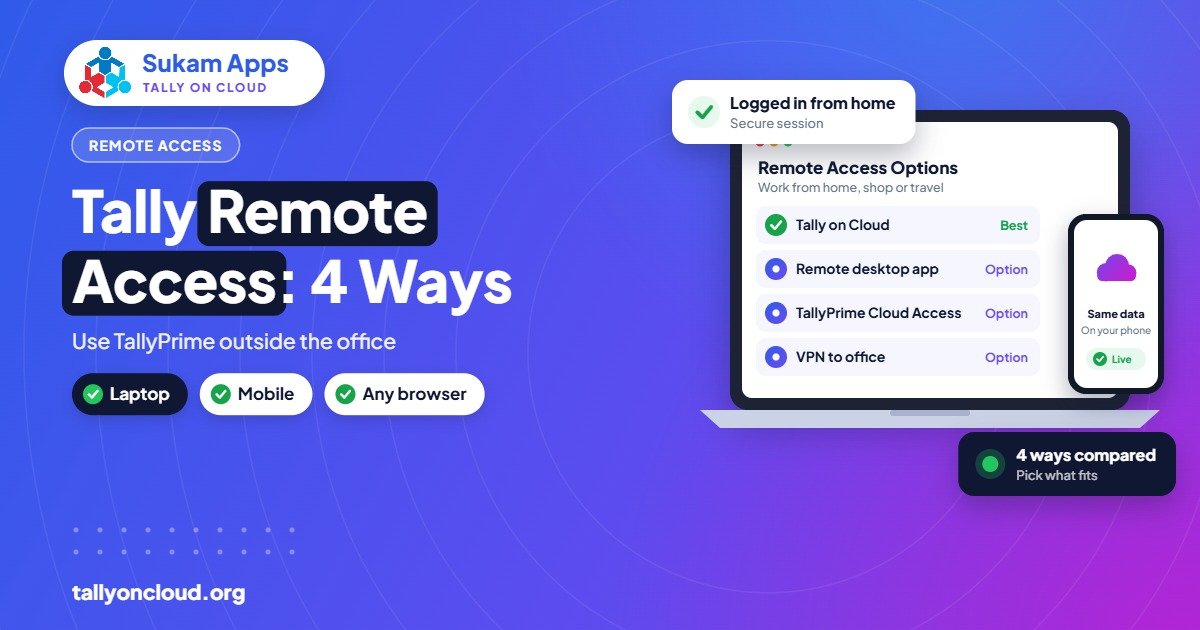
- Work from anywhere: office, home, branch or while travelling. See Tally remote access options.
- True multi-user without LAN: branches and your CA can work on the same data. Read multi-user Tally without LAN.
- Safer data: no single office PC holding all your books, plus managed backups.
- Use on Mac and mobile: TallyPrime is Windows software, but on cloud you can open it from a Mac or phone. See Tally on Mac.
- No server hardware: no server, UPS or AMC to maintain in the office.
Things TallyPrime on Cloud Does Not Change
Your TallyPrime licence rules stay the same. The screens, shortcuts, reports and GST features are identical. Your data remains yours, and you can take a backup at any time. If you later want to move providers, the process is straightforward; see switching Tally cloud provider.
Frequently Asked Questions
Can I use my existing TallyPrime licence on cloud?
Yes. In a hosted setup your existing TallyPrime licence is activated on the cloud server. You do not need to buy a new one unless you need more simultaneous users than your licence allows.
Does TallyPrime work the same way on cloud?
Yes. It is the same TallyPrime with the same screens, shortcuts, reports and GST features. Only the place where it runs changes.
Which TallyPrime version is used on cloud?
The server should run the same or a newer release than your current one. With active TSS you can stay on the latest TallyPrime release.
How long does it take to move TallyPrime to cloud?
For a typical small business with a few users and standard TDLs, the move is usually quick once the licence and data backup are ready. Complex TDLs or many companies need more testing time.
Is TallyPrime on cloud safe?
A well-managed cloud server with individual logins, strong passwords and regular backups is usually safer than a single office PC. Read is Tally on Cloud safe for details.
Move Your TallyPrime to Cloud with Sukam Apps
Sukam Apps, Jalandhar, has helped businesses with software since 2011. We set up TallyPrime on cloud for your team, move your data, train your staff in Hindi or Punjabi and stay available on a dedicated support line. Book a free demo or start a free trial, or call or WhatsApp 99142 49191. New to the topic? Start with our complete guide to Tally on Cloud.