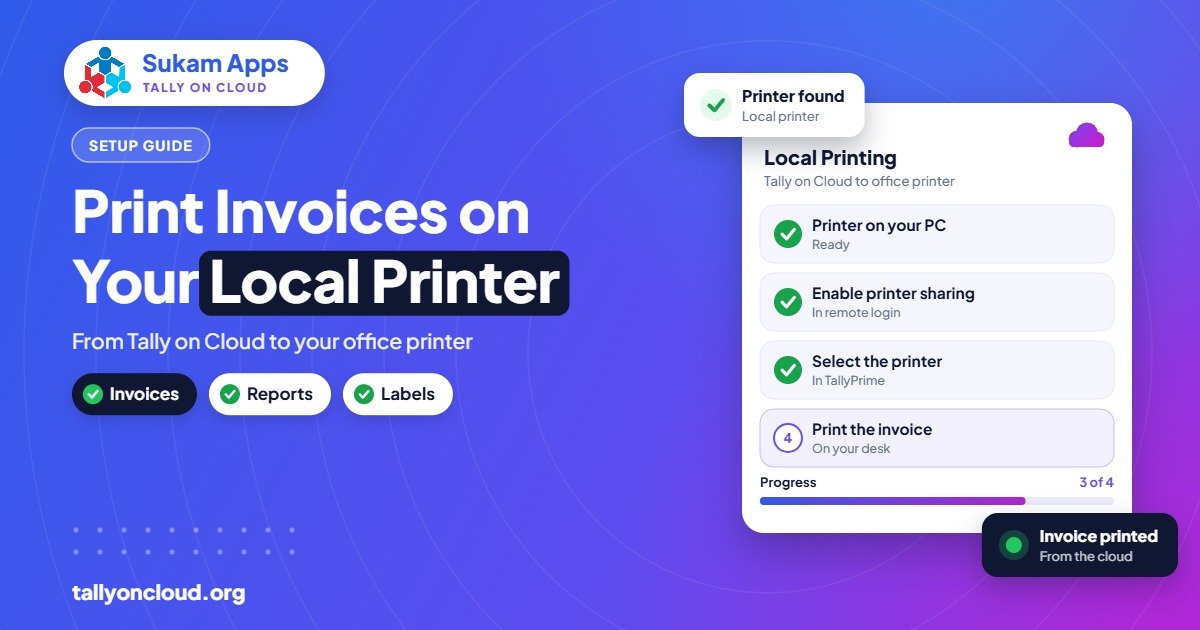
Tally cloud printing works through printer redirection: when you connect to Tally on Cloud with Remote Desktop, your office printer is passed into the cloud session, so TallyPrime sees it like a locally attached printer. You press Ctrl+P in Tally, the server sends the job back to your computer, and the invoice prints on your desk. Laser and inkjet printers usually work immediately; thermal and dot-matrix printers sometimes need a little extra setup.
This guide explains how it works, how to set up each type of printer, and how to fix the problems we see most often.
How Tally Cloud Printing Works
On a normal office PC, TallyPrime sends a print job straight to a printer driver installed on that PC. With Tally on Cloud, TallyPrime runs on a remote Windows server, which has no direct cable to your printer. Remote Desktop solves this by “redirecting” the printers installed on your computer into your server session.
The flow looks like this:
- You open the invoice in TallyPrime on the cloud server and press Ctrl+P.
- TallyPrime lists printers, including your local ones, often with “redirected” in the name.
- The server converts the print job and sends it through the Remote Desktop connection.
- Your computer receives it and passes it to the actual printer.
Most providers use a universal printing method so they do not need to install every brand’s driver on the server. That method suits standard A4 printers very well. Special printers that depend on exact paper sizes or raw text commands are where the extra care comes in.
Step-by-Step: First-Time Printer Setup
- Install the printer on your own computer first. Print a Windows test page locally. If it does not print locally, it will not print from the cloud.
- Enable printer redirection in Remote Desktop. In the Windows Remote Desktop Connection, go to Show Options, then Local Resources, and tick Printers. On a Mac or phone app, find the equivalent setting in the connection’s properties.
- Set your default printer locally. The printer marked as default on your computer usually becomes the default inside the session.
- Connect and open TallyPrime. Press Ctrl+P on any voucher and check that your printer appears in the list.
- Select the printer in Tally’s print configuration and save it, so you do not choose it every time.
- Print a real invoice and check margins, logo position and page breaks.
If you are on a Mac, see how to run TallyPrime on a Mac for the connection app settings.
Printing on Different Printer Types
Laser and inkjet (A4) printers
These are the easiest. A Chandigarh CA office printing ledger statements and a Jalandhar exporter printing proforma invoices on A4 rarely face issues. If you print a lot, a printer with duplex and decent memory will feel faster, because large reports are sent as images.
Thermal receipt printers (2-inch and 3-inch)
Counters, sweet shops and retail outlets often use thermal printers. They usually work, but common issues are a wrong paper size (the print shrinks to a corner) or long blank tails after each bill. Fixes:
- Define the correct roll paper size in the printer’s preferences on your computer.
- In TallyPrime’s print configuration, choose the paper size and margins that match the roll.
- If universal printing still distorts the bill, ask your provider to install the printer’s own driver on the server.
Dot-matrix printers (continuous stationery)
Many traders in Ludhiana, Panipat and Mandi Gobindgarh still use dot-matrix printers for multi-copy invoices and challans. These printers are fastest with plain text output, while universal cloud printing sends a graphic page. The result can be slow, faint or misaligned printing. Fixes:
- Ask your provider to install the exact dot-matrix driver on the server so text is sent natively.
- Set a custom paper size matching your pre-printed stationery, both on the printer and in TallyPrime.
- Use TallyPrime’s draft or text-friendly print options where available for faster output.
Barcode and label printers
Label printers are the most sensitive to exact sizes. Expect a short testing session with your provider. Once the label size and driver match, printing is reliable.
Quick Comparison: What to Expect
| Printer type | Usually works out of the box? | Typical fix if not |
|---|---|---|
| Laser / inkjet A4 | Yes | Re-enable redirection; set default printer |
| Thermal receipt | Mostly | Correct roll size; native driver on server |
| Dot-matrix | Sometimes | Native driver; custom paper size |
| Barcode / label | Rarely without testing | Exact label size; native driver |
| Network printer | Yes, if installed on your PC | Install on the PC you connect from |
Troubleshooting Common Tally Cloud Printing Problems
My printer doesn’t appear in TallyPrime
- Check that printer redirection is ticked in your Remote Desktop settings.
- Log off the cloud session completely (not just close the window) and connect again.
- Confirm the printer prints a test page from your local computer.
- If it still doesn’t appear, the server may not support that driver; your provider can install it.
Print is going to the wrong printer
The session usually picks your local default printer. Change your default locally, reconnect, and save the correct printer in TallyPrime’s print configuration.
Printing is very slow
Large multi-page reports with logos travel as graphics. Print fewer pages at a time, check your internet upload speed, and for dot-matrix printers ask for a native driver. Slow printing on a single invoice usually means a driver mismatch, not a bad connection.
Margins are cut or the logo is misplaced
Check paper size on both sides: the printer preferences on your computer and the page setup in TallyPrime. They must match.
Someone else’s printer shows up in my list
On a properly configured server, each user sees only their own redirected printers. If you see others, inform your provider so they can tighten the session settings.
Beyond Paper: Email, WhatsApp and PDF
Many businesses on cloud print far less than they used to. TallyPrime can export invoices as PDF and email them directly, which is handy when a sales team works from different cities. Sukam Apps also offers WhatsApp automation for sending documents to customers, if you would like to go further, but for most clients good printer setup plus PDF export covers everything.
If staff print from home or a branch, each location simply needs its own printer installed on the computer they connect from. Our guide on multi-user Tally without LAN covers branch setups in detail.
Checklist Before You Go Live on Cloud
- List every printer and paper format you use: invoices, challans, cheques, labels, receipts.
- Note the make and model of each printer, especially dot-matrix and thermal ones.
- Share the list with your provider before migration, so drivers are ready on the server.
- Test each format with a dummy voucher on day one, not on the first busy morning.
- Keep one person in the office who knows how to reconnect and re-select the printer.
Frequently Asked Questions
Can I print from Tally on Cloud to a printer in my office?
Yes. With printer redirection enabled in Remote Desktop, the printers on your own computer appear inside the cloud session, and TallyPrime prints to them like a local printer.
Do I need to buy a new printer for Tally on Cloud?
Usually not. Standard A4 printers work immediately, and most thermal and dot-matrix printers work once the correct driver and paper size are set.
Why is my dot-matrix printer slow on cloud?
Universal cloud printing sends pages as graphics, which dot-matrix printers handle slowly. Installing the printer’s native driver on the server usually fixes speed and alignment.
Can I print cheques from Tally on Cloud?
Yes. Cheque printing depends on precise positioning, so do a few test prints on plain paper first and adjust the cheque format in TallyPrime before using real cheque leaves.
Can I print from my phone when Tally is on cloud?
Printing from a phone is less reliable. It is usually easier to export a PDF and share it, or print from a computer. See Tally on mobile for what works best on phones.
Printing should be the least of your worries. When Sukam Apps sets up Tally on Cloud, we test your actual invoice, challan and label formats on your actual printers, on-site across Punjab, Chandigarh Tricity, Haryana, Delhi NCR and Himachal, or remotely anywhere in India with a dedicated account manager. WhatsApp +91 99142 49191 for a free demo, or get in touch here.