Learning a few TallyPrime shortcut keys saves accountants hours every week. Instead of clicking through menus, you press one key and the right voucher or report opens. This page lists the TallyPrime shortcut keys that accounts teams use every day, grouped by task, with F1 to F12 function keys, Alt keys and Ctrl keys.
The same shortcuts work whether TallyPrime is installed on your office computer or you use it on TallyPrime on Cloud. If a key behaves differently on your screen, look at the button bar on the right side of TallyPrime: it always shows the shortcut for each option on that screen.
Download: TallyPrime Shortcut Keys PDF
Want the full list offline? Download the free TallyPrime shortcut keys PDF (2 pages: F1 to F12, voucher keys, Alt and Ctrl keys) and keep it next to your keyboard or print it for your accounts team.
TallyPrime Function Keys (F1 to F12)
| Shortcut | What it does |
|---|---|
| F1 | Help |
| F2 | Change the current date |
| F3 | Select or change company |
| F4 | Contra voucher |
| F5 | Payment voucher |
| F6 | Receipt voucher |
| F7 | Journal voucher |
| F8 | Sales voucher |
| F9 | Purchase voucher |
| F10 | Other vouchers list |
| F12 | Configure the current screen or report |
TallyPrime Shortcut Keys for Vouchers
| Shortcut | What it does |
|---|---|
| Ctrl+F8 | Credit Note |
| Ctrl+F9 | Debit Note |
| Alt+F8 | Delivery Note |
| Alt+F9 | Receipt Note |
| Alt+F7 | Stock Journal |
| Ctrl+F7 | Physical Stock |
| Ctrl+F4 | Payroll voucher |
| Ctrl+F10 | Memorandum voucher |
Shortcut Keys While Entering a Voucher
| Shortcut | What it does |
|---|---|
| Ctrl+A | Accept and save the voucher |
| Esc | Go back or leave without saving |
| Alt+C | Create a ledger or stock item on the fly |
| Alt+A | Add a new voucher in a voucher list |
| Alt+I | Insert a voucher above the current one |
| Alt+2 | Duplicate the current voucher |
| Alt+D | Delete the voucher |
| Alt+X | Cancel the voucher (keeps the number with zero value) |
| Alt+R | Remove (hide) a line in a report |
| Alt+U | Bring back the last removed line |
| Ctrl+H | Change voucher mode (item invoice, accounting invoice, as voucher) |
| Ctrl+I | More details for the voucher |
Menu and Report Shortcut Keys
| Shortcut | What it does |
|---|---|
| Alt+K | Company menu |
| Alt+Y | Data menu (backup, restore, repair) |
| Alt+Z | Exchange menu (GST, e-invoice, data sync) |
| Alt+G | Go To any report or voucher |
| Ctrl+G | Switch To another screen |
| Alt+O | Import |
| Alt+E | Export |
| Alt+M | Share by e-mail or WhatsApp |
| Alt+P | |
| Alt+F2 | Change the period of a report |
| Ctrl+B | Basis of values in a report |
| Ctrl+J | Exception reports |
Tips to Learn TallyPrime Shortcuts Faster
- Start with the six voucher keys F4 to F9. They cover most daily entries.
- Use Alt+G (Go To) instead of searching menus. Type a few letters of any report name and press Enter.
- Keep this page open on a second screen for a week. Most accountants remember the keys they use daily within a few days.
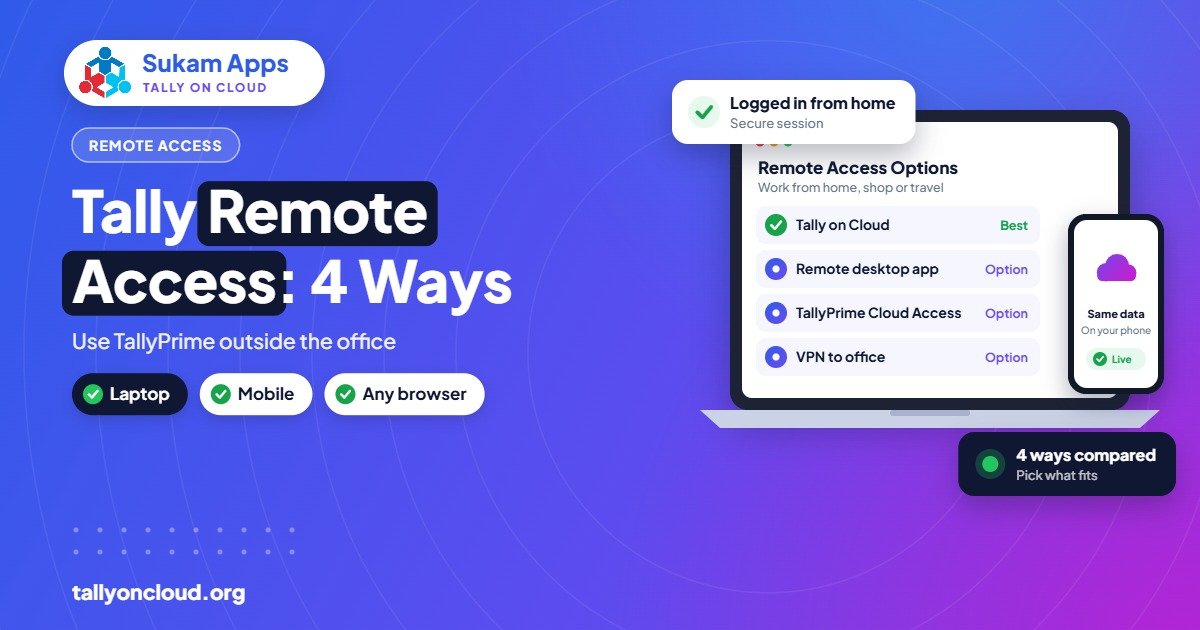
- If your team works from different places, put TallyPrime on the cloud so everyone uses the same company data with the same shortcuts. See Tally remote access options and Tally on Cloud pricing.
Frequently Asked Questions
What are the most used TallyPrime shortcut keys?
The most used ones are the voucher keys: F4 Contra, F5 Payment, F6 Receipt, F7 Journal, F8 Sales and F9 Purchase, plus Ctrl+A to save, Esc to go back and Alt+G to go to any report.
What is the shortcut key for credit note and debit note in TallyPrime?
Ctrl+F8 opens a Credit Note and Ctrl+F9 opens a Debit Note voucher.
How do I change the date in TallyPrime?
Press F2 to change the current date, and Alt+F2 to change the period of a report.
How do I delete or cancel a voucher in TallyPrime?
Open the voucher and press Alt+D to delete it, or Alt+X to cancel it. Cancelling keeps the voucher number in the books with zero value.
Do TallyPrime shortcut keys work on Tally on Cloud?
Yes. On Tally on Cloud you use the same TallyPrime, so every shortcut key works the same way from your laptop, Mac or remote desktop app.
Use TallyPrime from anywhere. Tally On Cloud by Sukam Apps runs your licensed TallyPrime on a secure cloud server with daily backups. Start a free trial or call / WhatsApp 99142 49191.