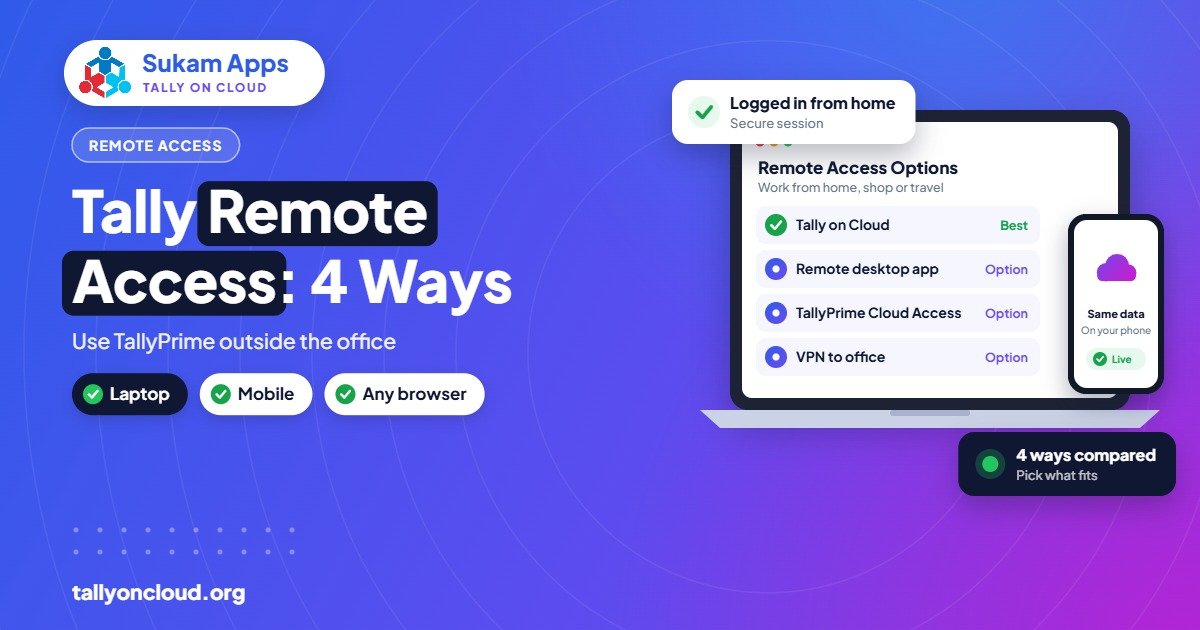
To run multi user Tally without LAN, put your TallyPrime Gold licence and company data on a cloud server, then let each user connect over the internet with their own login. Everyone, whether at a branch, a godown or at home, works in the same company at the same time, with no office network, VPN or static IP needed. The only requirements are a Gold licence for simultaneous users and a decent internet connection at each location.
This guide explains why LAN becomes a problem as you grow, what you need, and the exact steps to get your team working together from anywhere.
Why LAN Stops Working When You Grow
TallyPrime’s multi-user mode was traditionally set up on a local network. One PC holds the data, others in the same building connect to it. That works well when everyone sits in one office.
Trouble starts when the business spreads out. Consider a Jalandhar sports goods company with a factory in Focal Point, a retail showroom in the city and a godown on the bypass. Each location ends up with its own copy of Tally. At month end, someone exports and imports data, fixes duplicate entries and reconciles stock by hand. Mistakes creep in, and the owner never sees today’s true stock or cash position.
The usual workarounds each have their own problems:
- Separate data at each location: constant syncing, duplicate masters, delayed reports.
- VPN to the office server: needs a static IP, a capable router and someone to maintain it. Slow when many users connect.
- Remote control tools on the office PC: only one person at a time, and the office PC has to stay on all day.
- Sending backups on WhatsApp: fine for the CA once a month, useless for daily operations.
How Multi User Tally Without LAN Works on Cloud
With Tally on Cloud, the “server PC” moves out of your office and into a data centre. Your TallyPrime Gold licence is activated there, along with your company data. Every user gets an individual login to the server and connects through Remote Desktop (RDP), RemoteApp or a browser.
Because everyone is opening the same TallyPrime on the same server, they all work in one company, live. A delivery note entered at the godown reduces stock instantly; the showroom sees it; the owner sees it from his phone. There is nothing to sync. For the full background, see our complete guide to Tally on Cloud.
What You Need Before You Start
1. A TallyPrime Gold licence
This is the most common point of confusion. A Silver licence allows only one user at a time, no matter how many people have server logins. For two or more people working simultaneously, you need Gold.
| Licence | Simultaneous users | Perpetual price (excl. GST) | Rental (excl. GST) |
|---|---|---|---|
| Silver | 1 | ~₹22,500 | From ₹750/month |
| Gold | Multiple | ~₹67,500 | From ₹2,250/month |
If you already own Silver, you can upgrade to Gold through your Tally partner. Keep TSS active if you want new releases such as TallyPrime 7.0 and the 7.1 features now rolling out.
2. A cloud server or hosting plan
Most providers charge roughly ₹400–₹700 per user per month for shared plans. For larger teams or heavy data, a dedicated server is better. See Tally on Cloud price in India for the full breakdown.
3. Internet at each location
Remote desktop sends only screen updates, not your full data, so ordinary broadband or a 4G/5G connection is usually enough. A backup connection at the main office is strongly recommended.
4. A list of users and what they should see
Write down every person, their location and the work they do. This drives both their server login and their TallyPrime security level.
Step-by-Step: Setting Up Multi-User TallyPrime on Cloud
- Consolidate your data. If each location has its own data, decide which becomes the master company. Fix masters (ledgers, stock items, godowns) so there are no duplicates. Your accountant or Tally partner can help merge closing balances properly.
- Take a full backup. Back up every company from the current PCs before anything moves.
- Set up the server. The provider prepares the cloud Windows server, installs TallyPrime and activates your Gold licence there.
- Upload and test the data. Restore the company on the server and open it. Check trial balance, stock summary and a few vouchers against the old system.
- Load TDLs and invoice formats. Any custom add-ons are placed on the server and tested.
- Create godowns and cost centres. In TallyPrime, set up a godown for each physical location (factory, showroom, warehouse) so stock is tracked by place. Use cost centres if you want branch-wise profit.
- Create server logins. Each user gets an individual username and password, ideally with two-factor authentication.
- Create TallyPrime users and security levels. Give each person rights that match their job, for example godown staff can make stock journals and delivery notes but can’t view profit and loss.
- Set up printing. Map each location’s printer so invoices and challans print locally.
- Install access shortcuts. Put the RDP/RemoteApp shortcut on each Windows PC, and the remote desktop app on Macs and phones where needed.
- Train and go live. A short session per location covering login, daily entry, printing and exporting reports. Go live at the start of a month.
Practical Setups for Different Locations
Branches
A Ludhiana hosiery wholesaler with a second outlet in Amritsar can bill from both counters into the same company. Use a separate voucher series per branch so invoice numbers don’t clash, and godowns to keep stock separate.
Godowns
The godown keeper only needs to record receipts, dispatches and transfers. Give them a limited security level and a basic laptop or even a tablet. The sales team sees real stock before promising delivery.
Work from home
The owner can check outstanding, cash flow and day book from home or while travelling. An accountant can finish GST work in the evening without carrying data on a pendrive.
Your CA
Give the CA’s office a separate login with report and checking rights. No more monthly backups. We explain this in Tally on Cloud for CA firms.
Tips to Keep Multi-User Work Smooth
- One person, one login. Never share logins. It keeps the Edit Log meaningful and lets you remove access cleanly.
- Agree on master creation. Let only one or two people create new ledgers and stock items, to avoid duplicates like “Sharma Traders” and “Sharma Trader”.
- Use voucher classes or series by location so each branch’s entries are easy to track.
- Close Tally properly at the end of the day instead of just closing the remote window.
- Use SmartFind in TallyPrime 7.0 to search masters and transactions from any screen, which saves time when many people share a large company.
- Keep a backup internet connection at the main billing location.
Worried about data safety when many people log in from different places? Read Is Tally on Cloud safe?
Frequently Asked Questions
Can I use multi-user Tally without LAN?
Yes. Host TallyPrime on a cloud server and have each user connect over the internet. Everyone works in the same company at the same time, without a local network.
Do I need a Gold licence for multi-user access on cloud?
Yes. Silver allows only one active user at a time. Gold is required when two or more people need to work in TallyPrime simultaneously.
How much internet speed does each user need?
Remote desktop is light because only screen updates travel. A normal broadband or 4G/5G connection is usually enough for daily Tally work.
Can different branches have separate invoice numbering?
Yes. Create a separate voucher type or series for each branch, and use godowns to track stock by location, all inside one company.
Can I restrict what godown or branch staff can see?
Yes. TallyPrime security levels let you control which vouchers and reports each user can access, so godown staff can record stock movement without seeing financial reports.
Connect All Your Locations with Sukam Apps
Sukam Apps, Jalandhar, has been helping businesses since 2011. We set up multi-user Tally on Cloud with your own licence, daily backups and local printing at every location, and train your staff on-site in Hindi or Punjabi across Punjab, Chandigarh Tricity, Haryana, Delhi NCR and Himachal (Baddi, Solan). For the rest of India, a dedicated account manager supports you remotely. WhatsApp +91 99142 49191 for a free demo and a quote for your user count, or visit our home page.