A Tally cloud thermal printer works the same way as any other printer on Tally on Cloud: Remote Desktop redirects the printer connected to your counter PC into the cloud session, and TallyPrime prints to it. Barcode scanners are even simpler, because most scanners behave like a keyboard and simply “type” the code into Tally. The two things that need care are paper or label size, and whether the printer’s own driver is installed on the server.
This guide is for counters, retail outlets, wholesale billing desks and godowns that bill from TallyPrime on cloud and want fast receipts, labels and scanning.
How Counter Hardware Works with Tally on Cloud
TallyPrime runs on a remote Windows server. Your counter PC only displays the screen and sends your keystrokes. So each device reaches Tally differently:
| Device | How it reaches Tally on Cloud | Setup effort |
|---|---|---|
| USB barcode scanner | Acts as a keyboard; scanned code is sent as keystrokes | Usually none |
| Thermal receipt printer (2″ / 3″) | Printer redirection through Remote Desktop | Paper size settings; sometimes server driver |
| Barcode label printer | Printer redirection, plus label design | Label size, driver, label format or add-on |
| Cash drawer | Usually opened by the receipt printer’s kick signal | Printer driver setting; test carefully |
Setting Up a Barcode Scanner
Most USB and wireless scanners sold for retail work in “keyboard mode” by default. When you scan, the scanner types the code followed by Enter, exactly as if someone typed it very fast. Because Remote Desktop forwards your keystrokes to the server, Tally on Cloud receives the code with no extra drivers.
- Test locally first. Open Notepad on your counter PC and scan a product. The code should appear, followed by a new line.
- Store the barcode against the item in Tally. A common method is to enter the barcode as an alias or part number of the stock item, so that scanning it in the item field selects the right item. Your Tally partner can suggest the best method for your setup.
- Scan inside a voucher. Open a sales invoice, go to the item field and scan. The item should be picked.
- Check the suffix. If the scanner adds Enter and Tally jumps past the quantity field, you can change the scanner’s suffix by scanning a setup code from its manual.
If a scanned code appears with missing or wrong characters, the usual cause is a keyboard layout mismatch between your PC and the server session, or the scanner typing faster than the remote session can accept. Many scanners have a setting to add a small delay between characters; try that first.
Setting Up a Thermal Receipt Printer
Sweet shops in Jalandhar, garment counters in Ludhiana’s markets and medical stores often print short bills on 2-inch or 3-inch thermal rolls. Here is the setup sequence that avoids most trouble.
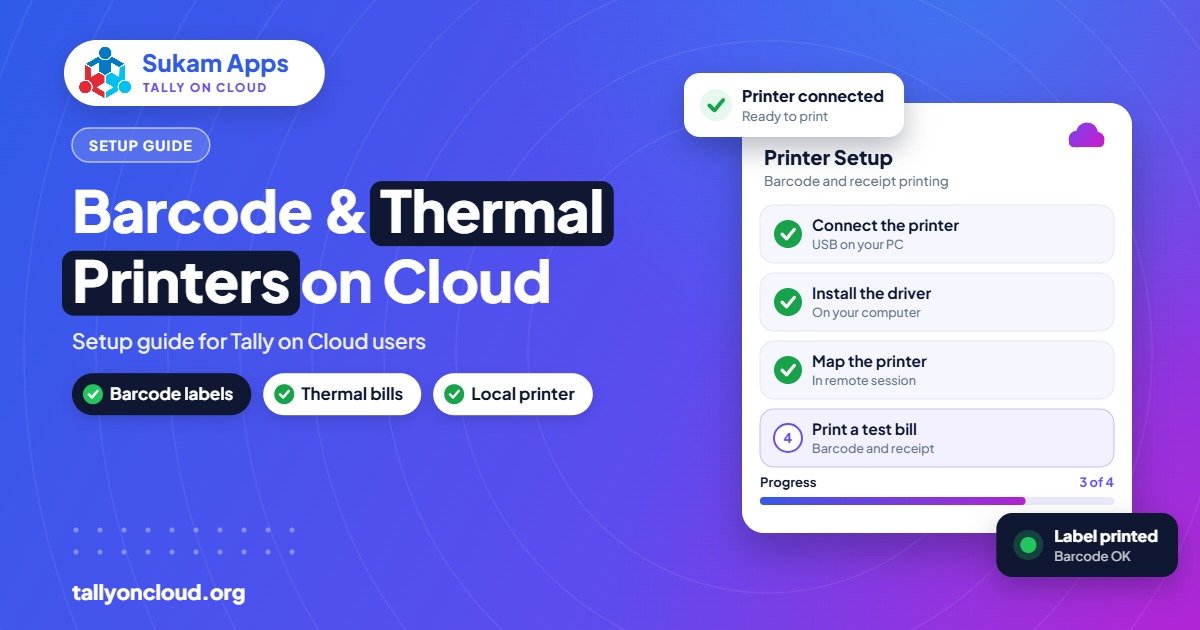
- Install the printer on the counter PC with the manufacturer’s driver, and print a Windows test page.
- Set the paper size locally. In the printer’s preferences, choose the correct roll width (58 mm or 80 mm are common) and a suitable length setting.
- Turn on printer redirection. In Remote Desktop Connection, go to Show Options, then Local Resources, and tick Printers.
- Connect and print a test bill from TallyPrime. Press Ctrl+P on a sales voucher, choose the thermal printer, and set paper size and margins in Tally’s print configuration to match the roll.
- Adjust the invoice format. A full A4 GST invoice squeezed onto a 3-inch roll is unreadable. Use a compact format, or ask your Tally partner for a receipt-style layout.
When the provider should install the driver on the server
Many cloud servers use a universal print method, which converts the job into a page image and sends it to your PC. That suits A4 laser printers well. Thermal printers sometimes come out tiny, shifted to one side, or with a long blank strip after every bill. If adjusting sizes does not fix it, ask your provider to install the same thermal printer driver on the server. The job is then prepared exactly as the printer expects.
Setting Up a Barcode Label Printer
Label printers are used to stick barcodes on products: garment tags in hosiery units, carton labels in a Baddi pharma godown, or price stickers on sports goods. They need more planning than receipt printers.
Decide where labels will be designed
TallyPrime is accounting and inventory software first. For printing barcode labels from item masters, businesses commonly use one of these approaches:
- A TDL add-on that prints labels from Tally items or purchase vouchers.
- Separate label software installed on the server or on the local PC, using item lists exported from Tally.
If you go with an add-on, it must be loaded on the cloud server. See how to load TDL add-ons on Tally on Cloud.
Get the label size exactly right
- Measure your label roll: width, height of each label, gap between labels, and how many labels across (1-up, 2-up).
- Enter these in the printer’s preferences on your PC, and in the server driver if one is installed.
- Run the printer’s calibration so it detects the gap between labels.
- Print one label, then a batch of ten, and check the last label is still aligned.
Label drift (each label printing slightly lower than the last) is almost always a size or calibration mismatch, not a cloud problem.
Test that the barcode actually scans
A barcode that looks fine but will not scan is useless at the counter. After printing, scan each test label with your own scanner. If it fails, the bars may be too thin for the printer’s resolution; increase the barcode width in the label design.
Cash Drawers
Most cash drawers connect to the receipt printer and open when the printer sends a “kick” signal. Whether this works from a cloud session depends on the printer driver settings. Set it in the printer’s driver options (usually “open drawer before/after printing”), then test with a real bill. If it only works with a server-side driver, ask your provider to install it.
Troubleshooting Common Counter Problems
| Problem | Likely cause | Fix |
|---|---|---|
| Thermal bill prints tiny in a corner | A4 layout sent to a roll | Set roll size locally and in Tally; use compact format |
| Long blank paper after each bill | Page length set too long | Reduce page length; try server-side driver |
| Printer not listed in Tally | Redirection off or driver issue | Tick Printers in RDP; reconnect |
| Scanned code has wrong characters | Keyboard layout or scan speed | Match layouts; add inter-character delay |
| Labels drift down the roll | Wrong label/gap size | Measure again; calibrate printer |
| Session freezes on print | Faulty or old printer in list | Remove unused printers from PC |
For a wider list of print problems, read printing invoices from Tally on Cloud. If your counter session also feels laggy, our slow Tally on Cloud fixes cover display and printer-related lag.
Tips for Busy Counters
- Use a wired internet connection at the counter. A delay of even a second per bill adds up in a festival rush.
- Keep a backup line or 4G hotspot ready so billing does not stop if the main line drops.
- Keep spare rolls of the right size. A different roll width means changing settings in the middle of a rush.
- Test everything during the free demo. Bring your actual printer and scanner. Our Tally on Cloud demo checklist lists what to try.
Frequently Asked Questions
Does a barcode scanner work with Tally on Cloud?
Yes. Most scanners work in keyboard mode, so the scanned code is sent to the cloud session like normal typing. No driver is needed on the server in most cases.
Can I print 2-inch or 3-inch thermal bills from TallyPrime on cloud?
Yes, through printer redirection. Set the correct roll size on your PC and in Tally’s print configuration, and use a compact invoice format. If the output is still distorted, have the printer driver installed on the server.
Can TallyPrime print barcode labels?
Label printing from item masters is usually done with a TDL add-on or separate label software. Both can work with Tally on Cloud, but the add-on or software must be set up on the server or your PC.
Why do my labels shift after a few prints?
The label height or gap size does not match the roll, or the printer has not been calibrated. Measure the labels, enter exact sizes and run calibration.
Will the cash drawer open from a cloud session?
Usually, if the drawer is connected to the receipt printer and the drawer-kick option is set in the printer driver. Test it with a real bill before going live.
Want your counter, scanner and printers working perfectly from day one? Sukam Apps has been helping businesses since 2011. We set up Tally on Cloud on-site across Punjab, Chandigarh Tricity, Haryana, Delhi NCR and Himachal, test your actual hardware, and train your counter staff in Hindi or Punjabi. Outside these areas we set up remotely with a dedicated account manager. WhatsApp +91 99142 49191 for a free demo, or visit our Tally on Cloud home page.