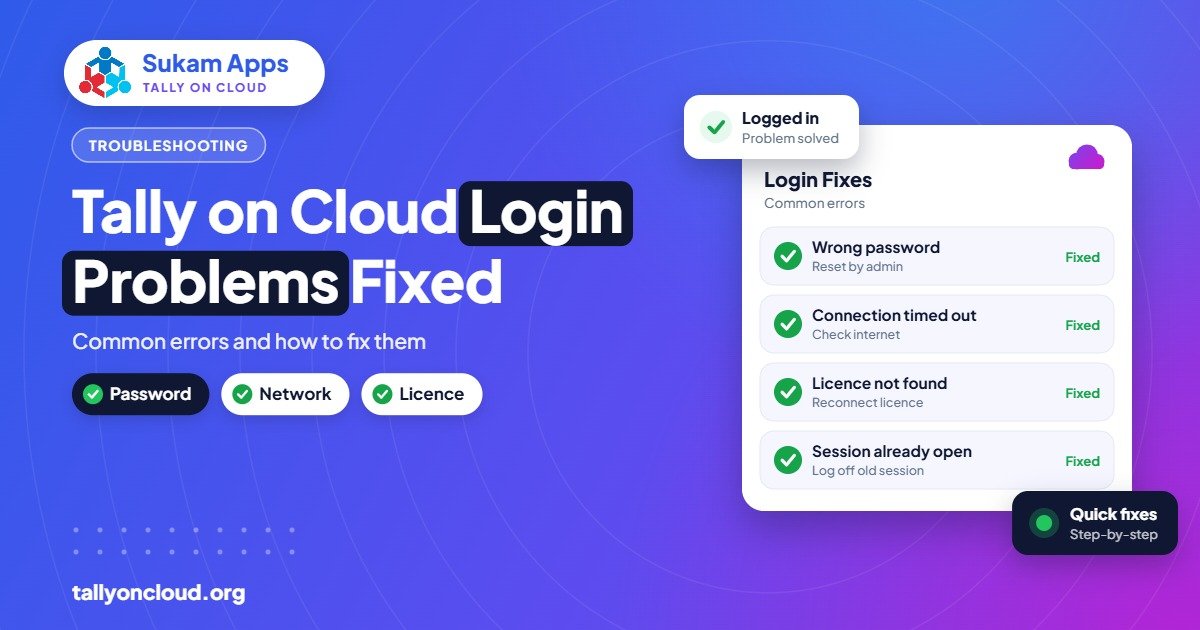
Most Tally cloud login problems come from four places: a wrong or expired password (often leading to a temporary lockout), a Remote Desktop connection that cannot reach the server, a TallyPrime licence that is not available, or the local internet or network blocking the connection. Each has a quick check you can do yourself in a few minutes. If those checks pass and you still cannot log in, the issue is on the server side and your provider should fix it.
Below, we explain what the common messages actually mean in plain words, what to try, and when to stop and call support. Screens differ slightly between Windows, Mac, Android and iPhone, but the causes are the same.
First, Know Which Step Is Failing
Logging in to hosted Tally on Cloud has three separate steps. Find which one is failing and you have halved the problem.
- Reaching the server. Your Remote Desktop app, RemoteApp shortcut or browser connects to the server address.
- Signing in to the server. You enter your server username and password.
- Opening TallyPrime. Tally starts, checks the licence, and you open your company with your Tally username and password.
If you never see a password box, step 1 is failing. If your password is rejected, it is step 2. If you get in but Tally complains, it is step 3.
Step 1 Problems: Cannot Reach the Server
“The remote computer can’t be found” or “can’t connect”
This means your device could not reach the server at all. Common causes:
- No internet, or internet that is connected but not working. Open any website to check.
- A typing mistake in the server address, or an old shortcut after the provider changed the address.
- Office firewall or router blocking the connection. This often happens after a new router is installed by the internet company.
- Some public or office Wi-Fi networks block remote desktop traffic.
Quick test: switch to your mobile hotspot and try again. If it works on the hotspot, the problem is your office network or router, not the server. Your provider can tell your IT person or internet company what to allow.
The connection starts but drops or freezes
This is usually an unstable line rather than a login problem. Our post on internet speed for Tally on Cloud explains why stability matters more than speed, and slow Tally on Cloud fixes covers lag after login.
Certificate or “identity of the remote computer” warning
Remote Desktop sometimes shows a warning that it cannot verify the server’s identity. If this appears for the first time after your provider told you about a server change, it may be expected. If it appears suddenly with no notice, do not click through blindly. Call your provider and confirm the server address first. It is a small step that protects against connecting to the wrong machine.
Step 2 Problems: Password and Account Errors
“Your credentials did not work”
In plain words: the username or password is wrong. Check:
- Caps Lock is off, and the keyboard language is English.
- The username format. Some servers need it written as SERVERNAME\username. Copy it exactly from what your provider gave you.
- Your saved password is not old. If you changed the password recently, the Remote Desktop app may still be sending the previous one. Delete the saved credentials and type fresh.
“The referenced account is currently locked out”
Servers lock an account after several wrong password attempts. This is a security feature that stops someone guessing passwords. Usually the lock clears automatically after some minutes, or your provider can unlock it immediately. Do not keep retrying during the lockout, as each attempt can extend it.
A frequent hidden cause: a phone or a second computer with an old saved password keeps trying in the background and locks the account again and again. If lockouts repeat, update or delete saved passwords on every device you use.
“Your password has expired” or “must be changed”
Many servers require password changes periodically. Follow the prompt and set a new password. If your app does not show a change screen (some Mac and mobile apps do not), ask your provider to reset it. Choose a password you do not use anywhere else.
“Another user is signed in” or “session limit reached”
Either someone else is using your login (which should never happen, since each person needs their own), or your previous session is still open on another device. Choose to take over your own session if offered. If the message mentions licences or connection limits, the server may have reached its allowed number of sessions, and only the provider can resolve it.
Step 3 Problems: TallyPrime and Licence Errors
Tally opens in educational mode or says the licence is not available
Tally on Cloud uses your own TallyPrime licence installed on the server. If Tally cannot find it, it may open in educational mode or show a licence message. Causes include:
- All licensed user slots are in use. A Gold licence allows a set number of people to work at the same time. If one more person tries to open Tally, they are refused. Ask a colleague who is idle to close Tally properly, not just disconnect.
- The licence needs to be reactivated or refreshed after a server move or a renewal.
- Someone surrendered the licence by mistake from the server.
Licence administration should be handled by your provider and your Tally partner. Do not try reactivating with a different account. If you are thinking about more users, our Silver vs Gold guide explains licence types.
Ghost sessions holding licences
When people close the Remote Desktop window with the X button, their session often keeps running in the background, with Tally still open and still holding a licence slot. Teach staff to exit Tally and sign out at the end of the day. Your provider can also set idle sessions to close automatically after a set time.
Company won’t open, or Tally password rejected
If you reach Tally but cannot open the company, check that you are using your Tally user password, which is separate from the server password. If the company says it is in use or shows a data error, stop and contact support rather than repairing it yourself. A good provider can restore from the daily backup if needed.
Quick Reference Table
| What you see | Most likely cause | First thing to try |
|---|---|---|
| Can’t find or connect to remote computer | Internet, address or firewall | Try on mobile hotspot |
| Credentials did not work | Wrong password or username format | Clear saved password, retype |
| Account locked out | Too many wrong attempts | Wait or ask provider to unlock; fix saved passwords on all devices |
| Password expired | Scheduled password change | Change it or ask for reset |
| Tally in educational mode | Licence slots full or not activated | Ask idle users to exit Tally; inform provider |
| Company won’t open | Wrong Tally password or data issue | Check Tally password; call support |
Prevent Login Problems Before They Start
- One login per person. Shared logins cause lockouts, licence clashes and no audit trail.
- Keep a written list of which devices each person uses, so saved passwords can be updated everywhere.
- Exit Tally and sign out instead of closing the window.
- Keep a backup internet option, such as a 4G hotspot, at every billing counter.
- Inform the provider before changing your office router or internet company.
- Save your provider’s support number where every staff member can see it.
Strong, unique passwords also protect against attacks. Read how to protect Tally data from ransomware for more.
When to Call Support Immediately
- Every user in the office cannot log in at the same time.
- You see an unexpected certificate warning.
- Tally shows a data or company corruption message.
- Your account is locked and you did not enter wrong passwords.
The last one can indicate someone else trying your account. Report it the same day.
Frequently Asked Questions
Why does my Tally cloud login keep getting locked?
Usually because an old password is saved on another device, such as a phone or a second laptop, which keeps trying in the background. Update or remove the saved password on every device.
Is my server password the same as my Tally password?
No. The server password lets you into the cloud server. The Tally user password opens your company in TallyPrime. They are set separately.
Tally on Cloud works on my phone but not on office Wi-Fi. Why?
Your office router or firewall is probably blocking Remote Desktop traffic. Share the details with your provider so they can tell your network person what to allow.
Why does Tally say no licence is available?
Most often all licensed user slots are in use, sometimes by sessions people left open. Ask idle users to exit Tally properly. If it continues, your provider needs to check licence activation on the server.
Can I reset my Tally on Cloud password myself?
That depends on the provider’s setup. Many require the provider to reset it after verifying who you are, which is safer.
Support From a Real Person, Not a Queue
With Sukam Apps, every Tally on Cloud client gets a dedicated account manager, so a login problem goes to someone who knows your setup, with no IVR or ticket queue. We provide on-site setup and training in Punjab, Chandigarh Tricity, Haryana, Delhi NCR and Himachal, and remote support across India. WhatsApp +91 99142 49191 for a free demo, or contact us.