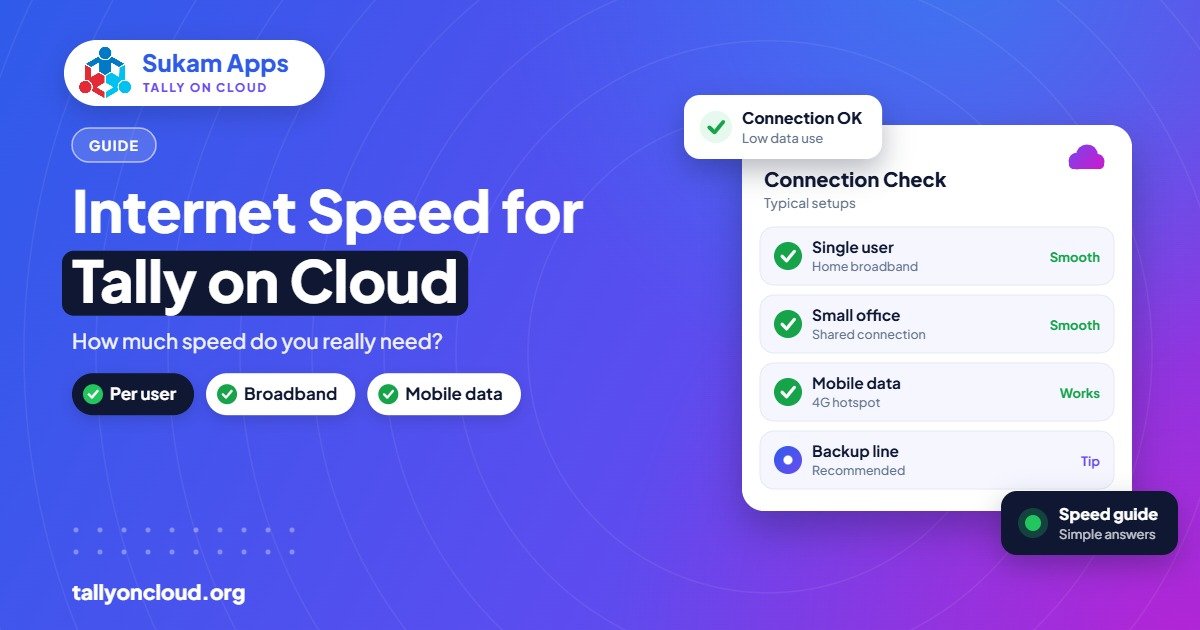
The internet speed for Tally cloud work is surprisingly modest. Remote Desktop only sends screen changes and keystrokes, so a steady broadband connection of a few Mbps is usually enough for several Tally users doing normal billing and accounting. What matters far more than raw speed is stability and low latency: a connection that does not drop, does not jitter, and responds quickly. A backup line or 4G hotspot is more valuable than paying for a faster plan.
Below we explain why, how to size your connection for your user count, and how to make your office network Tally-friendly.
Why Tally on Cloud Needs Less Bandwidth Than You Think
When you work on Tally on Cloud, TallyPrime and your data both sit on the server. Your computer does not download the company file or the reports. It receives a compressed picture of the screen, and only the parts that change. Tally’s screens are mostly text on plain backgrounds, which compress very well.
Compare that with what else happens on the same line:
- A YouTube video in HD uses much more bandwidth than a Tally session.
- A Windows update or large file download can briefly take most of the line.
- CCTV systems uploading footage use bandwidth all day.
So Tally is rarely the heavy user on your network. It is the sensitive one, because you notice every delay while typing.
Latency: The Number That Actually Matters
Latency is the time it takes for data to travel from your computer to the server and back, measured in milliseconds (ms). When you press a key in Tally on Cloud, the key goes to the server and the updated screen comes back. If that round trip is long or uneven, typing feels “heavy”.
Three related things to understand:
- Latency: lower is better. Steady low latency feels like a local PC.
- Jitter: how much latency jumps around. Uneven delay is more annoying than a slightly higher but steady delay.
- Packet loss: data that never arrives and has to be resent. Even small amounts cause freezes and disconnections.
How to check your line
- Ask your provider for your server address.
- Open Command Prompt on your PC and run a continuous ping to it (ping address -t).
- Let it run for two or three minutes during a busy part of the day.
- Look for steady numbers and no “Request timed out” lines.
A speed test website tells you bandwidth; the ping test tells you whether Tally will feel smooth. If you already have lag, see 9 fixes for slow Tally on Cloud.
Sizing Your Connection by Number of Users
Exact needs vary with screen size, number of monitors, display settings and printing. Use this as a practical guide, not a guarantee:
| Office type | Typical setup | What to look for |
|---|---|---|
| 1–2 users (small shop, home office) | Any stable broadband; 4G works | Stability over speed; a backup hotspot |
| 3–5 users (trader, CA office) | Wired fibre broadband plan | Wired PCs; nobody streaming video on the same line |
| 6–15 users (distributor, factory office) | Business fibre plan + second line from another ISP | Router that can fail over; separate Wi-Fi for guests |
| Branches and godowns | Each location on its own local line | Every site needs its own backup option |
Remember: each branch connects directly to the cloud server through its own local internet. Unlike an office LAN, there is no single head office line that everyone depends on. That is what makes multi-user Tally without LAN practical for branches and godowns.
Upload Speed Matters Too
Your keystrokes and mouse movements go up, and screen updates come down. Upload needs are small, but some cheap connections have very poor upload, and the problem gets worse when someone in the office is uploading files or CCTV footage. Fibre connections usually offer balanced upload and download, which helps.
Always Have a Backup Line
The biggest risk with Tally on Cloud is not a slow line; it is no line at all. When the fibre gets cut by road digging on the GT Road or the local cable operator’s box loses power, billing stops.
Practical backup options:
- A 4G/5G hotspot from a phone or a dedicated dongle. Fine for one or two users to keep billing going.
- A second broadband line from a different provider. Two lines from the same company often fail together because they share infrastructure.
- A dual-WAN router that switches automatically to the second line when the first fails, so staff barely notice.
- An inverter or UPS for the router and ONT. During a power cut, PCs on UPS are useless if the router is off. This is the most commonly forgotten item.
Router and Office Network Tips
- Use LAN cables for fixed accounts desks. Wi-Fi in a crowded market area competes with dozens of other networks.
- Use the 5 GHz band for laptops when a cable is not possible, and keep the router in a central, open place, not inside a steel almirah.
- Restart the router at a fixed time (early morning) if it tends to slow down after days of uptime.
- Separate guest Wi-Fi so visitors and staff phones do not share the accounts network.
- Schedule CCTV uploads and Windows updates outside office hours.
- Replace very old routers. The free router supplied years ago may not handle many devices well.
Working from Hills, Highways and Mobile
Owners in Himachal, at a factory on the outskirts, or travelling between cities often connect on mobile data. Tally on Cloud works on 4G as long as the signal is steady. A few tips:
- Check signal strength in the exact room you work from. A few metres can make a difference in hill buildings.
- Lower display quality in the Remote Desktop app on mobile connections.
- Keep work that needs long reports for when you are on a stable line.
Our guide for Baddi and Solan units covers hill connectivity in more detail, and using TallyPrime on your phone explains the mobile apps.
Should You Upgrade Your Plan?
Upgrade only if a speed test shows your line is truly congested during work hours (for example, downloads and video eating up the plan). If your ping test shows jumpy latency or drops, a faster plan from the same provider may not help. Ask the ISP to check the line, switch to fibre if you are on an older technology, or add a second provider.
Frequently Asked Questions
What is the minimum internet speed for Tally on Cloud?
There is no single official number, but Tally on Cloud uses little bandwidth because only screen updates are sent. A stable broadband connection of a few Mbps usually handles several users. Stability and low latency matter more than speed.
Can I use Tally on Cloud on a mobile hotspot?
Yes. A 4G or 5G hotspot works well for one or two users if the signal is steady, and it is an excellent backup when your main line goes down.
Why does Tally lag even on a 100 Mbps connection?
High speed does not guarantee low latency. Weak Wi-Fi, jitter, packet loss or another device saturating the line can make Tally feel slow. Test with a ping to the server and try a wired connection.
Does printing use a lot of bandwidth?
Large reports and invoices with logos are sent as print data and use more than normal typing, but it is short-lived. Very large print jobs on a weak line may take a few seconds longer.
Do branches need a fast connection too?
Each branch needs its own stable connection, sized for its own users. Branches connect directly to the cloud server, so they do not depend on the head office line.
Not sure whether your office internet is ready for Tally on Cloud? Sukam Apps can check it during a free demo. We have worked with businesses since 2011, with on-site setup and staff training in Hindi or Punjabi across Punjab, Chandigarh Tricity, Haryana, Delhi NCR and Himachal, and remote setup across India with a dedicated account manager. WhatsApp +91 99142 49191, or contact us here.