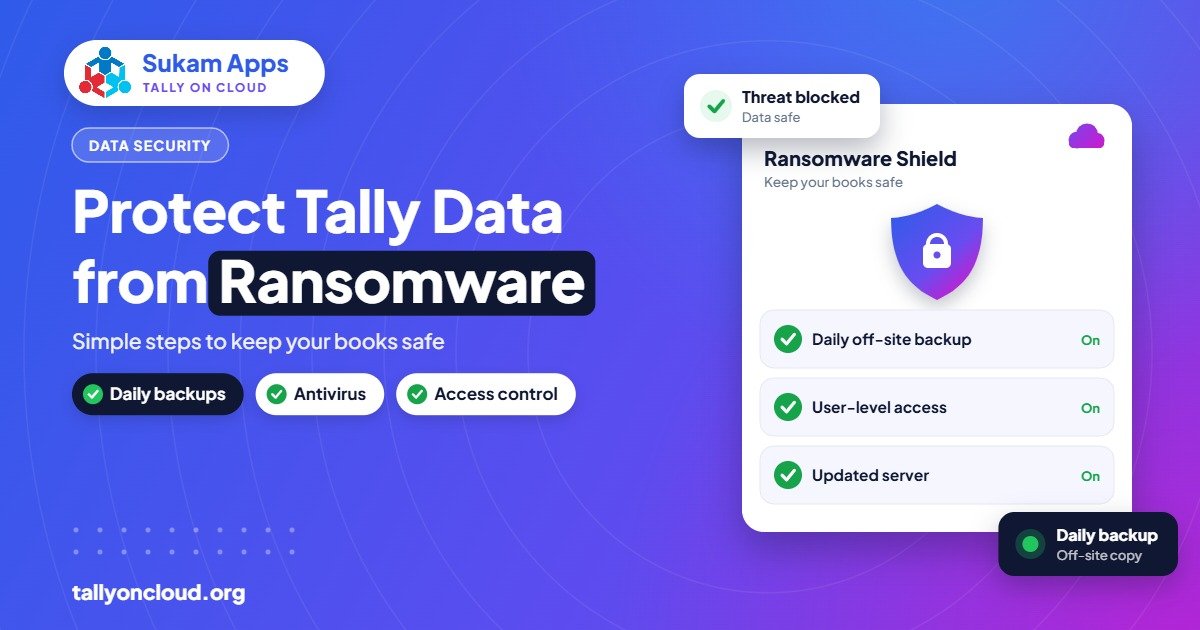
The best protection against Tally data ransomware is a combination of three things: backups that ransomware cannot reach (versioned and kept offline or on a separate system), keeping Tally data off the everyday PC where staff open emails and pendrives, and a few simple habits that block the most common entry points. Antivirus alone is not enough. If your backups are on the same PC or the same shared folder, assume the attack will encrypt them too.
This guide explains how ransomware actually reaches accounts computers in small Indian businesses, and gives you a practical plan whether your Tally runs on an office PC, a local server or the cloud.
What Ransomware Does to Tally Data
Ransomware is malicious software that encrypts files and demands payment to unlock them. Your Tally company folder is simply a set of data files on a disk, so to ransomware it looks like any other folder. After an attack, TallyPrime cannot open the company, and the files may have a strange new extension added to their names.
The real damage is not only the encryption. It is discovering that:
- The backup on the D: drive is encrypted too.
- The pendrive backup was last taken three months ago.
- The external hard disk was always left plugged in, so it was encrypted as well.
- Nobody knows exactly which bills, receipts and GST entries were made since the last good backup.
Paying the ransom is risky and gives no guarantee of getting data back. The goal is to never be in a position where you have to consider it.
How Attacks Reach an Accounts Computer
Small businesses are rarely targeted personally. Attacks are usually automated and opportunistic. The common routes are:
- Email attachments and links. A fake courier notice, a “GST notice” PDF, or an invoice from an unknown party. The accountant opens it on the same PC that holds the Tally data.
- Pirated or cracked software. Cracked versions of software, including accounting tools, games or utilities downloaded from unknown websites, are a known way malware gets installed.
- Remote access left open with weak passwords. An office PC exposed to the internet for remote access, with a password like the company name plus 123, can be guessed by automated tools.
- Infected pendrives. A pendrive that has been used in a cyber café, a client’s office or a printing shop.
- Outdated Windows. Systems that have not received security updates for a long time are easier to break into.
Notice that most of these involve the everyday office PC, the one used for email, WhatsApp Web, browsing and Tally all at once.
Step 1: Build Backups That Ransomware Cannot Reach
A widely used rule is 3-2-1: three copies of your data, on two different types of storage, with one copy kept off-site. For ransomware, add two more requirements: at least one copy should be offline or isolated, and backups should be versioned so you can go back to a day before the infection.
| Backup type | Protects against ransomware? | Notes |
|---|---|---|
| Copy on the same PC (D: drive) | No | Encrypted along with everything else |
| Shared network folder, always connected | Usually no | Ransomware can spread to mapped drives |
| External disk always plugged in | No | Treated like a local drive |
| External disk, connected only during backup | Yes, if done regularly | Depends on discipline |
| Versioned cloud backup (e.g., TallyDrive) | Generally yes | Restore an earlier version from before the attack |
| Provider’s server-level backups on Tally on Cloud | Generally yes | Kept outside your office systems |
TallyPrime 7.0 added TallyDrive, which stores backups in the cloud and lets you restore earlier versions, along with automatic background backups. Free TallyDrive storage is available with an active TSS. It is a useful layer; read our TallyDrive guide for setup and limits. For manual and scheduled methods, see how to back up and restore TallyPrime data.
Test a restore
A backup you have never restored is a hope, not a plan. Once a quarter, restore the latest backup into a test company and check that the last few days’ vouchers are there.
Step 2: Move Tally Data Off the Everyday PC
This is where Tally on Cloud changes the picture. With a hosted setup, the company data lives on a server in a data centre, not on the accountant’s PC. Staff connect through Remote Desktop and work on the data, but the files are not sitting in the PC’s folders.
So if a Ludhiana hosiery unit’s billing PC gets infected from an email attachment, the PC may need to be cleaned or reinstalled, but the Tally data on the cloud server is in a separate environment. Staff can log in from another PC or a laptop and keep billing.
Be realistic about what cloud does and does not do:
- It separates your data from the riskiest machines in your office.
- It adds provider-managed backups kept outside your office.
- It does not make the server immune. A good provider still patches the server, restricts access, isolates customers from each other and keeps backups separately.
- Remote Desktop file-sharing (drive redirection) can create a path between your PC and the server, so it should be enabled only where needed.
For a fuller look at security questions to ask, read is Tally on Cloud safe?
Step 3: Close the Common Entry Points
- Use licensed software only. This includes Windows, Tally and every utility on accounts PCs.
- Keep Windows and antivirus updated. Turn on automatic updates and restart PCs regularly so updates actually apply.
- Do not expose office PCs directly to the internet for remote access. If you need remote access, use a properly secured method, not an open port with a simple password.
- Use strong, unique passwords for Tally on Cloud logins, and do not share one login across staff. Separate logins also mean the Edit Log shows who did what.
- Turn on two-factor authentication where your provider supports it.
- Limit admin rights. Staff accounts on office PCs should not be administrator accounts.
- Disable autorun for pendrives and scan any pendrive before opening files.
Step 4: Train Staff in Five Minutes a Month
Most infections start with one click. A short monthly reminder in your staff WhatsApp group works better than a long policy document:
- Do not open attachments from unknown senders, even if they mention GST, income tax or courier.
- Check the sender’s actual email address, not just the display name.
- Never install software someone sends you on WhatsApp.
- If the PC behaves strangely, files get renamed or a ransom note appears: unplug the network cable or switch off Wi-Fi, and call the owner or IT person immediately. Do not keep working.
Step 5: Write a One-Page Recovery Plan
When an attack happens, people panic. A simple written plan helps:
- Disconnect the affected PC from the network.
- Inform your Tally on Cloud provider or IT support.
- Do not pay or contact the attackers without professional advice.
- Identify the last clean backup (date and time).
- Restore to a clean system and verify the data.
- Re-enter transactions made after the backup, using copies of bills, bank statements and e-invoice / e-way bill records.
- Change all passwords once the system is clean.
Keep this plan printed and pinned near the accounts desk, along with your provider’s support number.
A Simple Checklist
- Versioned backup outside the office, tested in the last 90 days
- At least one backup not permanently connected to any PC
- Tally data not stored on the email and browsing PC
- Licensed, updated software on every accounts PC
- Individual logins with strong passwords
- Written recovery plan with phone numbers
Frequently Asked Questions
Can ransomware encrypt Tally data?
Yes. Tally company data is stored as files on a disk, and ransomware encrypts files it can reach. Backups on the same PC or an always-connected drive are often encrypted too.
Is Tally on Cloud safe from ransomware?
It greatly reduces the risk because data is kept off your office PCs and the provider keeps separate backups. No system is immune, so the provider must still patch servers, isolate customers and keep versioned backups.
Does TallyDrive protect against ransomware?
TallyDrive keeps backups in the cloud and lets you restore earlier versions, which helps you recover. Use it as one layer alongside other backups, and keep TSS active for the free storage.
Should I pay the ransom to get my Tally data back?
Paying is risky and does not guarantee recovery. With good, tested backups you should not need to consider it. Seek professional advice before taking any step.
How often should I back up Tally data?
At least daily for active businesses, with versions kept for several days or weeks, so you can go back to a point before an infection that may have stayed hidden for a while.
Want your Tally data kept away from office PCs and backed up every day? Sukam Apps (Jalandhar, since 2011) sets up Tally on Cloud with daily backups and secure access from any device, using your own Tally licence. We visit on-site across Punjab, Chandigarh Tricity, Haryana, Delhi NCR and Himachal, train staff in Hindi or Punjabi, and support clients anywhere in India through a dedicated account manager. WhatsApp +91 99142 49191 for a free demo, or contact us.