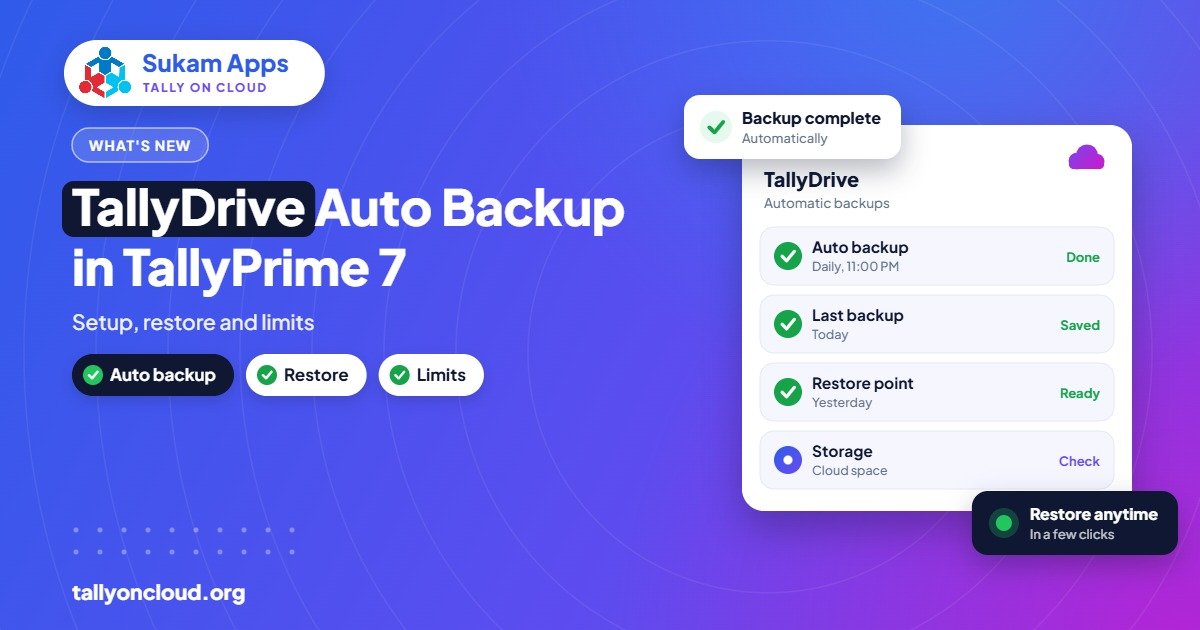
TallyDrive backup is the cloud backup feature that arrived with TallyPrime 7.0 on 19 December 2025. It lets TallyPrime take automatic backups in the background and store them on TallyDrive, on your local disk, or both, and you can restore an earlier version when something goes wrong. Free TallyDrive storage comes with an active TSS subscription, so your TSS status decides whether this feature is available to you.
Below we explain how TallyDrive and auto backup fit together, how to set them up sensibly, how restoring works, and where the limits are. We also cover why a business that runs Tally on Cloud should still keep a second, independent backup.
What TallyDrive Backup Actually Does
Before 7.0, backing up Tally data was a manual habit. Someone in accounts had to remember to take a backup, copy it to a pendrive or external disk, and hope that disk did not fail. In most offices we visit across Punjab and Haryana, that habit quietly died after a few months.
TallyPrime 7.0 changes this in two ways:
- Automatic background backups. TallyPrime can take backups on its own while you keep working, so nobody has to remember.
- TallyDrive storage. The backup can be stored on TallyDrive, Tally’s own cloud storage, so a copy exists outside your office. You can also keep a local copy, or use both locations together.
The practical result: if a laptop is stolen, a hard disk crashes, or a data file gets corrupted after a power cut, you have a recent copy that does not live on the same machine.
Versions, not just one copy
An important detail is that TallyDrive keeps earlier versions. This matters more than people expect. Suppose a staff member wrongly alters fifty vouchers on Monday and nobody notices until Thursday. If you only had one backup that was overwritten every night, it would already contain the mistake. With versions, you can go back to a copy from before Monday.
Who Gets TallyDrive and What TSS Has to Do With It
Free TallyDrive storage is linked to an active TSS (Tally Software Services) subscription. If your TSS has lapsed, you either renew it or rely on local backups only. We explain renewal and what else depends on it in our Tally TSS renewal guide.
You also need to be on TallyPrime 7.0 or later. If you are still on an older TallyPrime release, or on Tally.ERP 9, TallyDrive will not appear at all. Read how to migrate from Tally.ERP 9 to TallyPrime 7 if that applies to you.
Setting Up TallyDrive and Auto Backup: A Practical Sequence
Menu names can shift slightly between releases, so treat this as a sequence of decisions rather than exact button labels. If you cannot find an option, press the Help key in TallyPrime and search for “backup” or “TallyDrive”.
- Confirm your version and TSS. Open TallyPrime and check the product information screen. You should see version 7.0 or later and an active TSS validity date.
- Take one manual backup first. Before changing any settings, take a normal manual backup and copy it somewhere safe. This is your safety net while you experiment.
- Open the backup settings. Look for the backup configuration for your company. This is where you choose automatic backup and the destination.
- Choose the destination. Pick TallyDrive, local, or both. We recommend both: TallyDrive for off-site safety and a local folder for fast restores.
- Choose which companies to include. Many businesses have several companies loaded, for example a trading firm and a separate proprietorship. Make sure every live company is covered, not just the one you opened first.
- Set a sensible local folder. If you choose local backup, do not point it at the same folder as your data. Use a separate drive or partition where possible.
- Let it run and then check. After a day of normal work, confirm that backups are actually appearing in both destinations. A backup you have never checked is only a hope.
How to Restore From TallyDrive
Restoring is where people panic, so practise once on a calm day.
- Close the affected company in TallyPrime so nothing is being written to it.
- Open the restore option and choose TallyDrive (or local) as the source.
- Pick the version by date and time. Choose the last good version, before the mistake or corruption happened.
- Restore to a new folder first. Do not overwrite your live data straight away. Restore into a separate location, open it, and check the ledgers and stock that matter.
- Swap only after checking. Once you are sure the restored copy is correct, make it your working data, and keep the old damaged copy aside for a few days in case you need something from it.
Restoring to a separate folder first is the single most useful habit here. It turns a risky one-way action into a reversible one.
The Limits You Should Know About
TallyDrive is a big improvement, but it is not a complete backup strategy on its own. Be honest about these points:
- It depends on TSS. If your TSS lapses, the free storage benefit is tied to it. Plan renewals so you are not caught without off-site backups.
- Upload needs internet. If your office internet is down, the TallyDrive copy will lag behind. The local copy still helps in that window.
- It covers Tally data, not everything. Your TDL files, configuration, printer setup and other documents on the same computer are a separate matter.
- Storage limits may apply. Check your plan’s current storage terms in TallyPrime or with your Tally partner. Large data files with many years of history take more space.
The 3-2-1 Rule: TallyDrive Plus a Second Backup
IT people use a simple rule called 3-2-1: keep 3 copies of important data, on 2 different types of storage, with 1 copy off-site. Here is how it looks for a typical TallyPrime user.
| Copy | Where it lives | What it protects against |
|---|---|---|
| 1. Live data | The computer or server running TallyPrime | Daily work |
| 2. TallyDrive backup | Tally’s cloud storage (needs active TSS) | Theft, fire, disk failure, accidental changes |
| 3. Independent backup | Local disk, your own cloud storage, or your Tally on Cloud provider’s server backups | TSS lapse, account issues, any single point of failure |
The third copy is the one most offices skip. It does not need to be expensive. It just needs to be separate from the other two.
How This Works When Tally Runs on Cloud
If your TallyPrime runs on a cloud server instead of an office computer, the backup picture becomes simpler and stronger.
- The server stays on. Unlike an office PC that gets shut down every evening, a cloud server keeps running, so automatic backups are not interrupted by power cuts in your area.
- Two layers of backup. You can use TallyDrive inside TallyPrime and also have server-level daily backups taken by your provider. That gives you the independent third copy without extra effort.
- Nobody carries data home on a pendrive. Staff in branches or working from home access the same data, so there is no confusion about which copy is the latest.
When Sukam Apps sets up Tally on Cloud, we configure daily backups on the server and help you switch on TallyDrive in TallyPrime 7 if your TSS is active, so you are not relying on any single copy. For the full backup routine, including manual backups, see our step-by-step guide on how to back up and restore data in TallyPrime. You can also read the broader picture in is Tally on Cloud safe.
A Simple Monthly Backup Checklist
Print this and stick it near the accounts desk. It takes ten minutes a month.
- Check that TSS is active and note the expiry date in your calendar, one month ahead.
- Open the backup list and confirm the latest TallyDrive backup is from today or yesterday.
- Confirm the local or server backup is also recent.
- Confirm every live company is included, including any company created this month. CA offices with many client companies should keep a written list and tick each one.
- Once a quarter, do a test restore into a separate folder and open a few key reports.
- After year-end closing or a big GST filing, take one extra manual backup and label it clearly, for example “FY close, March”.
Frequently Asked Questions
Is TallyDrive free?
Free TallyDrive storage is available with an active TSS subscription on TallyPrime 7.0 or later. Check the current storage terms in TallyPrime or with your Tally partner, as plan details can change.
Can I keep backups both on TallyDrive and on my own computer?
Yes. TallyPrime 7.0 lets you store backups on TallyDrive, locally, or both. Using both gives you an off-site copy and a quick local copy for fast restores.
Can I restore an older version, not just the latest backup?
Yes. TallyDrive keeps earlier versions, so you can pick a backup from before a mistake or data problem happened. Restore it to a separate folder first and check it before replacing live data.
What happens to TallyDrive if my TSS expires?
Free TallyDrive storage is tied to active TSS. If it lapses, renew it or make sure you have a separate local or server backup so you are never without an off-site copy.
Do I still need backups if I use Tally on Cloud?
Yes, but it becomes easier. A good Tally on Cloud setup includes daily server backups, and you can also use TallyDrive inside TallyPrime. That gives you two independent copies.
Does TallyDrive work on Tally.ERP 9?
No. TallyDrive came with TallyPrime 7.0. You need to move to TallyPrime 7.0 or later to use it.
Want your Tally data backed up without thinking about it? Sukam Apps has been helping businesses since 2011 and sets up Tally on Cloud with daily backups, secure access from any device and local printing, using your own Tally licence. We do on-site setup and staff training in Hindi and Punjabi across Punjab, Chandigarh, Haryana, Himachal and Delhi NCR, with a dedicated support person for every client. WhatsApp us on +91 99142 49191 for a free demo and a quote for your user count, or visit our contact page.