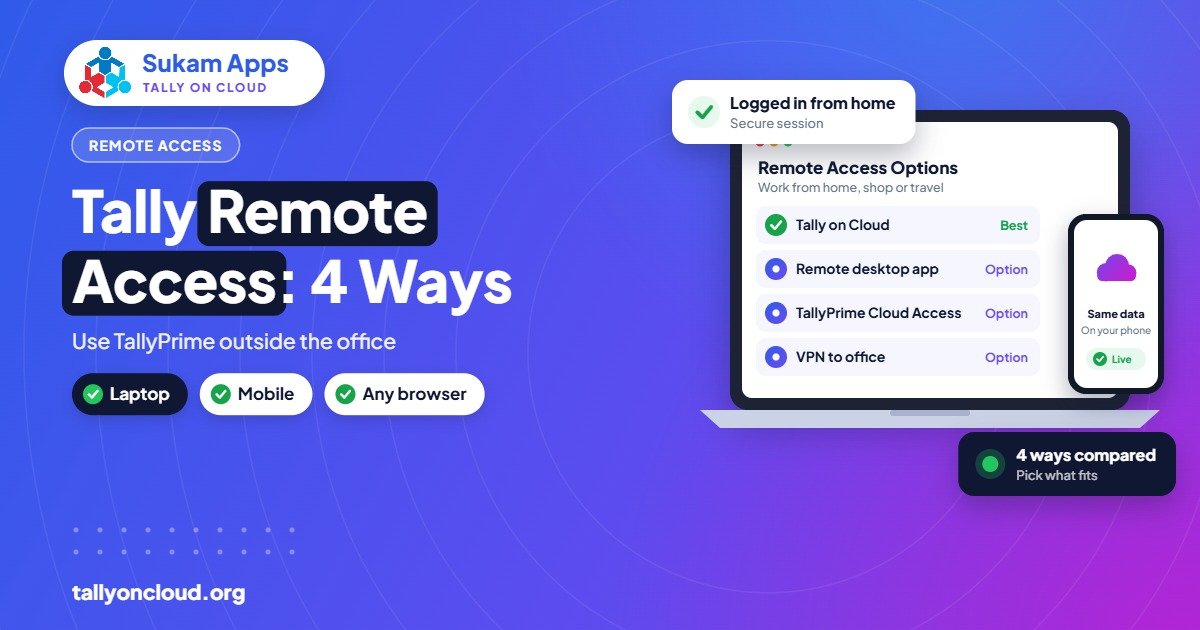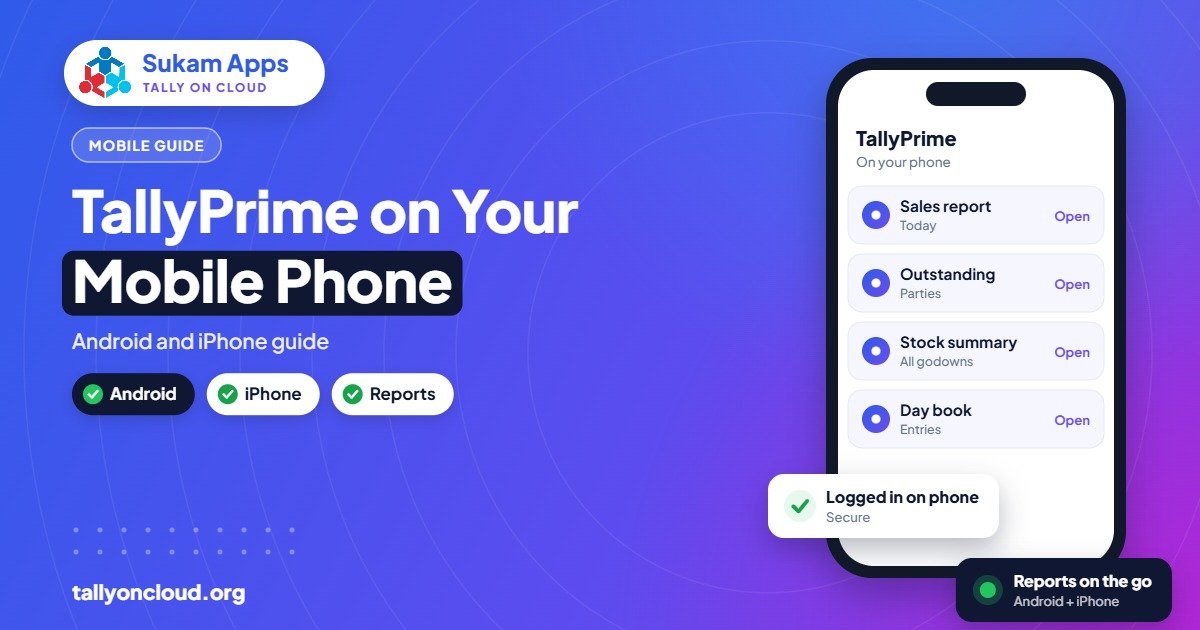
You can use Tally on mobile by running TallyPrime on a cloud server and connecting to it from your Android phone or iPhone with a free Remote Desktop app. You see the real TallyPrime screen, with your live company data, and can check outstanding, stock and day book entries from anywhere. Phones are excellent for checking and approving; for heavy data entry, a laptop or desktop is still more comfortable.
This guide covers the setup step by step, what is realistic to do on a small screen, and the tips that make daily use smooth.
How Tally on Mobile Actually Works
TallyPrime is a Windows program, so it does not install on Android or iOS. The way around this is simple: TallyPrime runs on a Windows server (in a data centre with Tally on Cloud, or on an office computer you have opened for remote access), and your phone acts as a remote screen and keyboard.
When you tap or type on your phone, the input travels to the server. TallyPrime does the work there, and only the updated screen image comes back. That is why it works even on an ordinary 4G connection: your company data never travels to the phone.
This is different from the various “Tally reporting” mobile apps that sync selected data to a phone dashboard. Those apps show summaries; the Remote Desktop approach gives you the full TallyPrime, with every report and every voucher type. Both have their place, and some owners use both.
What You Need Before You Start
- TallyPrime hosted on a server — ideally Tally on Cloud, so it is reachable 24×7 without keeping an office PC switched on. Our Tally on Cloud guide explains how it is set up.
- Login details from your provider: server address, username and password.
- A Remote Desktop app — Microsoft’s free app on Android, and the same app (now called Windows App) on iPhone and iPad.
- A user account in TallyPrime with suitable rights, so the phone user sees only what they should.
Setting Up Tally on an Android Phone
- Open the Google Play Store and install Microsoft’s Remote Desktop app.
- Open the app and tap the + button to add a new PC or connection.
- Enter the server address your provider gave you. Some providers send a link or file that fills this in automatically.
- Add your username and password, or choose to enter them each time for extra safety.
- In the connection settings, turn on the options to keep the screen in landscape and to show the on-screen keyboard button.
- Tap the connection. Accept the security certificate prompt the first time if your provider tells you to.
- TallyPrime opens. Select your company and log in with your Tally user.
Setting Up Tally on an iPhone or iPad
- Open the App Store and install Windows App by Microsoft (earlier called Microsoft Remote Desktop).
- Tap + and choose to add a PC.
- Type the server address, then add a user account with your username and password.
- Open the connection settings and enable the options you need; most people turn off sound redirection to save data.
- Tap the saved connection and log in to TallyPrime.
- Rotate the phone to landscape. On an iPad with a keyboard case, TallyPrime feels almost like a laptop.
What Works Well on a Phone (and What Doesn’t)
Be realistic about a six-inch screen. TallyPrime was designed for keyboards, and long voucher entry on a touch keyboard is tiring. Here is how we suggest splitting work:
| Task | On a phone | Notes |
|---|---|---|
| Check a party’s outstanding before a meeting | Excellent | Two or three taps in Display More Reports |
| View stock summary or godown-wise stock | Excellent | Zoom in on the item list |
| Check today’s day book, cash and bank balances | Excellent | Ideal for owners travelling |
| Share a ledger or invoice as PDF | Good | Export on server, then email from Tally |
| Pass a single receipt or payment entry | Good | Fine for occasional entries |
| Create a sales invoice with 20 items | Poor | Use a laptop or a tablet with a keyboard |
| GST return preparation and reconciliation | Poor | Large tables need a big screen |
Real-World Ways Business Owners Use It
The travelling owner. A Jalandhar sports goods exporter at a trade fair checks whether a buyer’s last payment has arrived before agreeing to a new shipment. No calls to the office, no waiting for the accountant to email a statement.
The field salesman. A sales executive for an Amritsar rice trader visits a wholesaler and needs to confirm stock of a particular grade in the godown. With a restricted Tally user, he sees stock and the party’s outstanding, but cannot alter vouchers or view other parties’ balances.
The partner at home. In a Mandi Gobindgarh steel trading firm, one partner reviews the cash book every night from home on an iPad, while the other runs the shop floor.
Several staff can connect together if you have a Gold (multi-user) licence. See how to use multi-user TallyPrime without LAN for how branches and remote users share one company.
Tips to Make Tally on Mobile Comfortable
- Always use landscape. TallyPrime’s columns need the width.
- Use the app’s mouse or touch mode wisely. Touch mode lets you tap directly; mouse-pointer mode is more precise for small buttons. Try both.
- Learn a few shortcuts. Alt+G (Go To) is the quickest way to jump to any report on a phone, rather than navigating menus. Combine it with SmartFind in TallyPrime 7.0 to search with partial spellings; see our post on TallyPrime 7.0 new features.
- Carry a small Bluetooth keyboard. If you need to pass more than a few entries while travelling, a foldable keyboard turns a phone into a usable workstation.
- Increase Tally’s display zoom if text is hard to read, or pinch-zoom in the Remote Desktop app.
- Log off properly. Closing the app may only disconnect; logging off frees the session and the licence seat for someone else.
Keep It Secure on a Phone
Phones get lost far more often than office computers. A few simple habits protect your books:
- Lock the phone with a PIN or fingerprint, and do not save the server password in the app for shared or older phones.
- Give every user their own TallyPrime login with limited rights. A salesman does not need access to the journal register or payroll.
- Ask your provider to enable two-step login on the server if available, and to disable a user immediately when a staff member leaves.
- Avoid connecting on unknown public Wi-Fi without the provider’s recommended security in place.
If a phone is lost, nothing is stored on it except the connection settings. Change the password, and your data stays safe on the server.
Common Problems and Quick Fixes
- “Unable to connect”: check mobile data or Wi-Fi first, then confirm the server address. If it worked yesterday, your provider may be applying updates; message them.
- Screen too small or blurry: change the resolution setting in the app to “fit to device” or a higher resolution and zoom in.
- Keyboard not appearing: tap the keyboard icon in the app toolbar; TallyPrime cannot trigger the phone keyboard itself.
- Function keys missing: the app’s extended keyboard includes F-keys, Esc and Alt; use that rather than the phone’s default keyboard.
Frequently Asked Questions
Is there an official TallyPrime app for Android or iPhone?
TallyPrime itself runs on Windows. To use the full TallyPrime on a phone, you connect to a server running it through a Remote Desktop app. That is how Tally on Cloud makes it available on mobile.
Can I create invoices in Tally from my phone?
Yes, you can create any voucher, but long invoices are slow on a touch screen. Phones are best for checking reports, approving and making occasional entries.
How much mobile data does Tally on mobile use?
Remote Desktop sends only screen updates, so data usage is modest for normal report checking. Turning off sound and lowering the colour depth in the app reduces it further.
Can my salesman see only his own parties and stock?
You can create a separate TallyPrime user with restricted rights so he sees only permitted reports and cannot alter or delete entries. Your provider or implementation partner can help configure this.
Is my data stored on the phone?
No. Data stays on the cloud server. The phone only displays the screen, so a lost phone does not mean lost or leaked books, provided you change the password promptly.
Want your full TallyPrime in your pocket?Sukam Apps sets up Tally on Cloud with your own licence, daily backups and user-wise access, and configures the Remote Desktop app on your team’s phones. We offer on-site setup and training in Hindi or Punjabi across Punjab, Chandigarh Tricity, Haryana, Delhi NCR and Himachal, and remote setup anywhere in India with a dedicated account manager. WhatsApp +91 99142 49191 for a free demo.