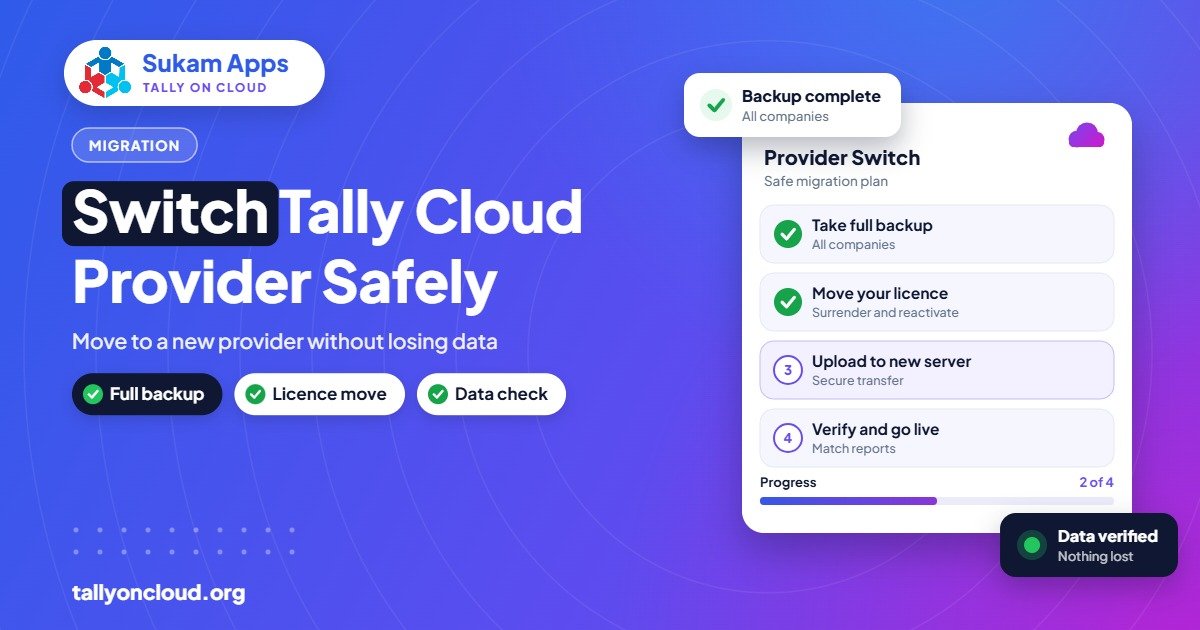
To change Tally cloud provider safely, do it in this order: take and verify a full backup of every company, collect your TDL files and settings, surrender the TallyPrime licence from the old server, reactivate it on the new one, restore and check the data, then switch your users over on a quiet day. Your data and your licence belong to you, not to the provider, so a planned move should not lose a single voucher.
People usually switch because of slow performance, poor support, unclear billing, or because they want on-site help nearby. Whatever the reason, the steps below keep the move calm and reversible.
Before You Decide: Rule Out Quick Fixes
Sometimes the problem is fixable without moving. If Tally is slow, check whether the cause is your office internet, Wi-Fi, display settings or a TDL. Our slow Tally on Cloud fixes cover this. If those checks point to the server or to support that simply does not respond, it is time to plan the move.
What You Need to Take with You
| Item | Why it matters | Where to get it |
|---|---|---|
| Company data (all companies, all years) | Your books | Backup from TallyPrime, or a copy from the provider |
| TallyPrime licence | Needed to run Tally on the new server | Surrender from old server, reactivate on new |
| TDL add-on files | Custom invoices, reports, integrations | Old server’s TDL folder or the TDL developer |
| Tally configuration | Print settings, data path, preferences | Settings on the old server |
| User list and rights | Who can access what | Tally security controls and the provider’s login list |
| Printer details | Special drivers and paper sizes | Your notes and the old provider’s setup |
| Other files on the server | Exports, PDFs, Excel reports saved there | Your folders on the old server |
Step-by-Step: Moving to a New Tally Cloud Provider
Step 1: Shortlist and demo the new provider
Do not cancel anything yet. Run a proper demo with the new provider using a copy of your data, your printers and your busiest report. Use our Tally on Cloud demo checklist. Only proceed once you are satisfied.
Step 2: Check your notice period and billing
Read your agreement with the current provider. Note the notice period, the date your paid period ends, and how they hand over data. Plan the cutover a few days before your paid period ends, so you have overlap but do not pay for an extra month without need.
Step 3: Take a full backup yourself
Do not rely only on the provider sending you files. Log in and take your own backup:
- Ask all users to log out.
- In TallyPrime, back up every company, including older years kept as separate companies.
- Download the backup files to your own computer, and keep a second copy on a pendrive or external disk.
- Note the closing balances of a few key ledgers, the stock value and the last voucher numbers. You will use these to verify the restore.
If you use TallyDrive (TallyPrime 7.0 onwards) with active TSS, a cloud backup there gives one more copy. See how to back up and restore TallyPrime data.
Step 4: Collect TDLs and settings
Ask the old provider (or check yourself) for the TDL files loaded in your TallyPrime, and note any special configuration. If a TDL was licensed to your Tally serial number, confirm with the TDL developer that it will work after the move. Read loading TDLs on Tally on Cloud for what the new provider will need.
Step 5: Surrender the licence from the old server
A TallyPrime licence is activated on a specific installation. Before it can run on the new server, it generally has to be surrendered (deactivated) from the old one. This is usually done from the licence options in TallyPrime by someone with access to the old server and the licence admin account.
- Coordinate with the old provider to do this at the agreed time.
- Make sure you know your Tally account login (the email ID linked to the licence). If the licence is registered under the old provider’s email, get it transferred to yours first.
- If the old server is unreachable or the provider is not cooperating, contact your Tally partner or Tally support for help with the licence.
Keep TSS in mind as well. If TSS has expired, you can still run the version you are licensed for, but you cannot use newer releases and TSS-linked services. See our TSS renewal guide.
Step 6: Reactivate and restore on the new server
The new provider installs TallyPrime, you (or they, with your permission) activate the licence, then restore your backup and load the TDLs. Ideally the new setup runs the same or a newer TallyPrime release than the old one. If upgrading, the new provider should handle any data migration that the newer release asks for.
Step 7: Verify the data
Compare against the figures you noted in Step 3:
- Trial balance totals match.
- Key ledger balances (bank, cash, major parties) match.
- Stock summary value matches.
- Last voucher numbers in sales, purchase and receipts match.
- Edit Log history is present if your company has it enabled.
Do not move users until every check passes.
Step 8: Set up users, printers and devices
Create separate logins for each staff member, set Tally security rights, and test printing from every desk. Install the Remote Desktop connection or shortcut on each PC, laptop and phone. Delete the old connection shortcuts so nobody accidentally logs in to the old server and enters bills there.
Step 9: Cutover day
Choose a quiet day: a Sunday, a holiday, or the morning after month-end closing. Avoid GST due dates, financial year-end and festival rush.
- Tell all users the time after which no entries may be made on the old server.
- Take the final backup from the old server after that time.
- Restore it on the new server and repeat the Step 7 checks.
- Give users their new login details and confirm each person can log in.
- Watch the first day closely and keep the new provider’s support person on call.
Step 10: Close the old account properly
Keep read-only access to the old server for a short overlap if possible. Once you are confident, ask the old provider to delete your data from their servers and backups, and request a written confirmation. Download any other files you kept on the old server before it is closed.
Common Mistakes to Avoid
- Cancelling before the new setup is verified. Always keep an overlap.
- Licence registered to the provider’s email. Your licence should be under your business email so you control it.
- Forgetting old-year companies. Back up every company, not only the current one.
- Missing TDLs. Invoices print in a different format on day one and customers notice.
- Staff entering vouchers on both servers. Remove old shortcuts and change old passwords.
Before you pick a new company, run through our 12-point checklist for Tally cloud service providers.
Frequently Asked Questions
Will I lose data if I change my Tally cloud provider?
Not if you take your own backup, verify it after restore, and switch on a planned cutover day. The data belongs to you and can be moved completely.
Do I need a new Tally licence when I switch providers?
Usually not. Your existing licence is surrendered from the old server and reactivated on the new one. Make sure the licence is registered to your own email account.
What if my old provider does not cooperate?
Take a backup yourself while you still have access. For licence surrender issues, contact your Tally partner or Tally support. Check your agreement for data handover terms.
How long does the switch take?
The technical move is often completed in a few hours. The full process, including demo, preparation and verification, is best planned over one to two weeks.
Will my TDL add-ons work with the new provider?
Most will, if you have the files and they are compatible with the TallyPrime release on the new server. Confirm licensed TDLs with their developer before the move.
Thinking of moving your Tally on Cloud? Sukam Apps has helped businesses since 2011 and handles the move with you: backup checks, licence reactivation, TDLs, printers and staff training. We work on-site across Punjab, Chandigarh Tricity, Haryana, Delhi NCR and Himachal, and remotely across India, with a dedicated account manager for every client. WhatsApp +91 99142 49191 for a free demo on your own data, or contact us here.