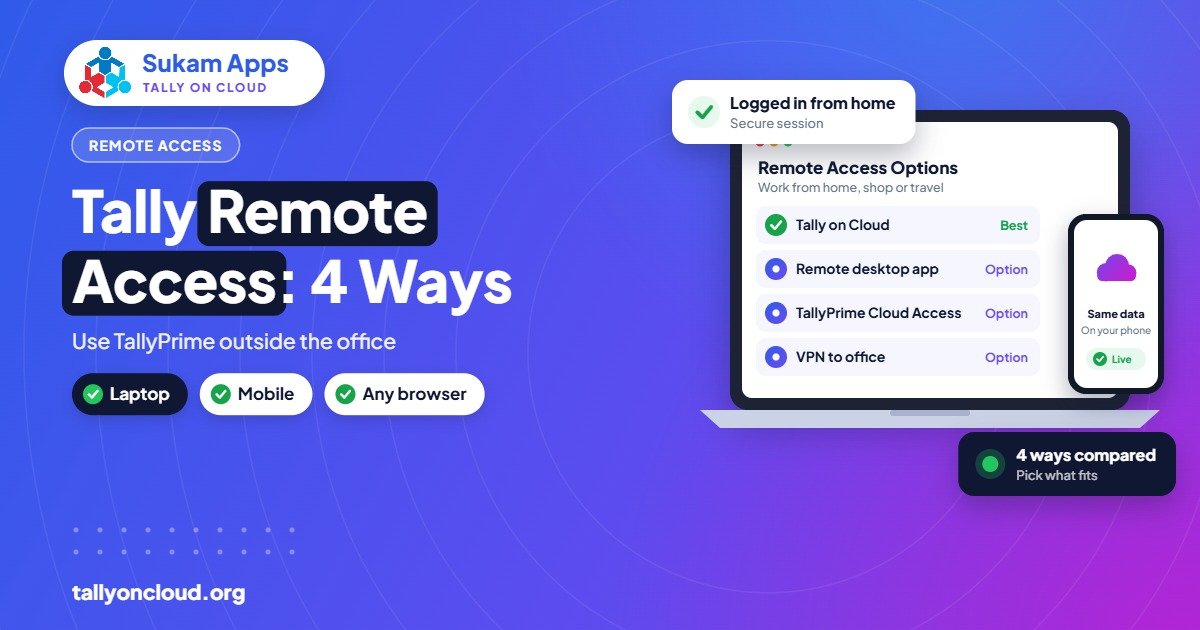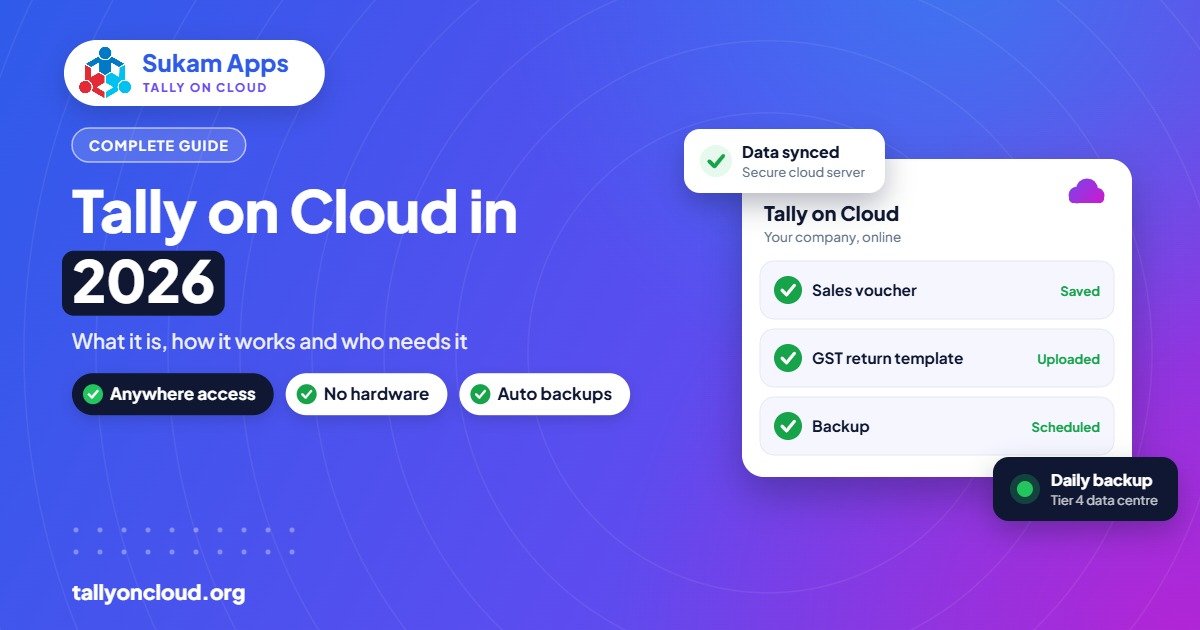
Tally on Cloud means your own licensed TallyPrime is installed on a remote server, and you open it over the internet from any laptop, Mac or phone instead of from one office computer. The data, the software and the backups sit on the server; your staff just log in. It suits any business that has more than one location, people working from home, or a CA who needs to see the books without a pendrive.
This guide explains how it works in 2026, what it costs and whether your business needs it.
What Is Tally on Cloud, in Plain Words?
Think of the computer in your office that runs TallyPrime. Now imagine that same computer sitting in a secure data centre, switched on day and night, with a proper power backup and a fast internet line. You and your staff connect to it from wherever you are. You see the normal TallyPrime screens, use the same shortcuts and print on the printer next to you.
Nothing about the way you do accounting changes. What changes is where Tally runs and who looks after the machine it runs on.
- It is still your licence. Your Silver or Gold TallyPrime licence is activated on the server. You are not buying a different accounting software.
- It is a full desktop TallyPrime. Every report and feature you use on your office PC is available.
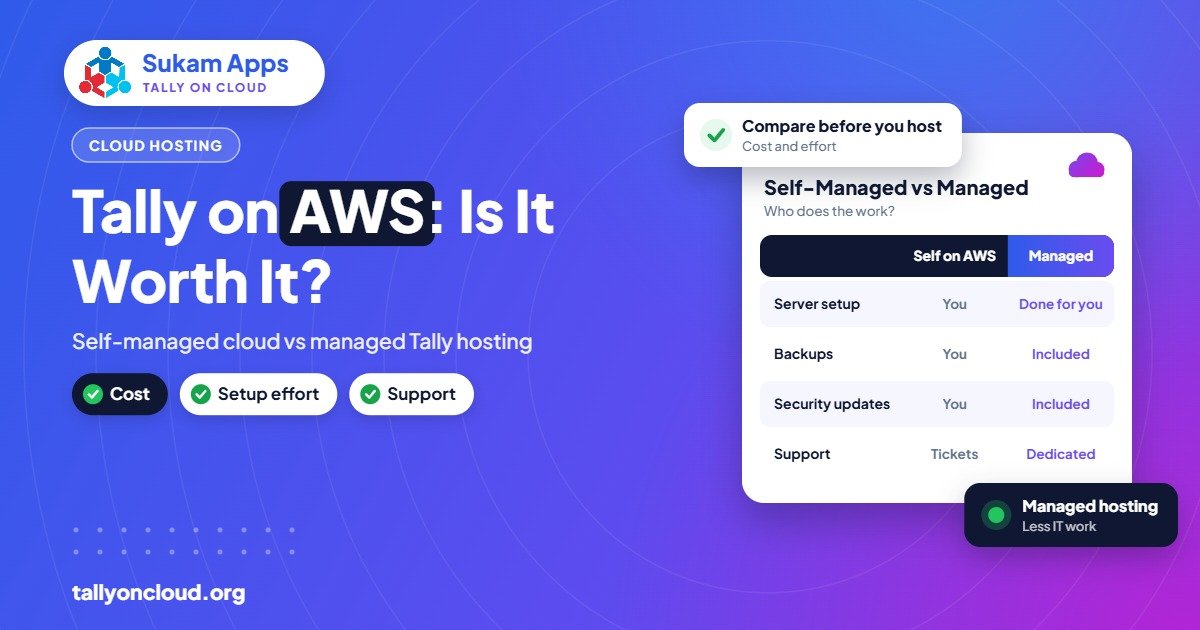
- The provider manages the server. Windows updates, security, backups, add-on loading and printer setup are handled for you.
How Tally on Cloud Works, Step by Step
Here is what actually happens behind the scenes when a business moves to a hosted setup:
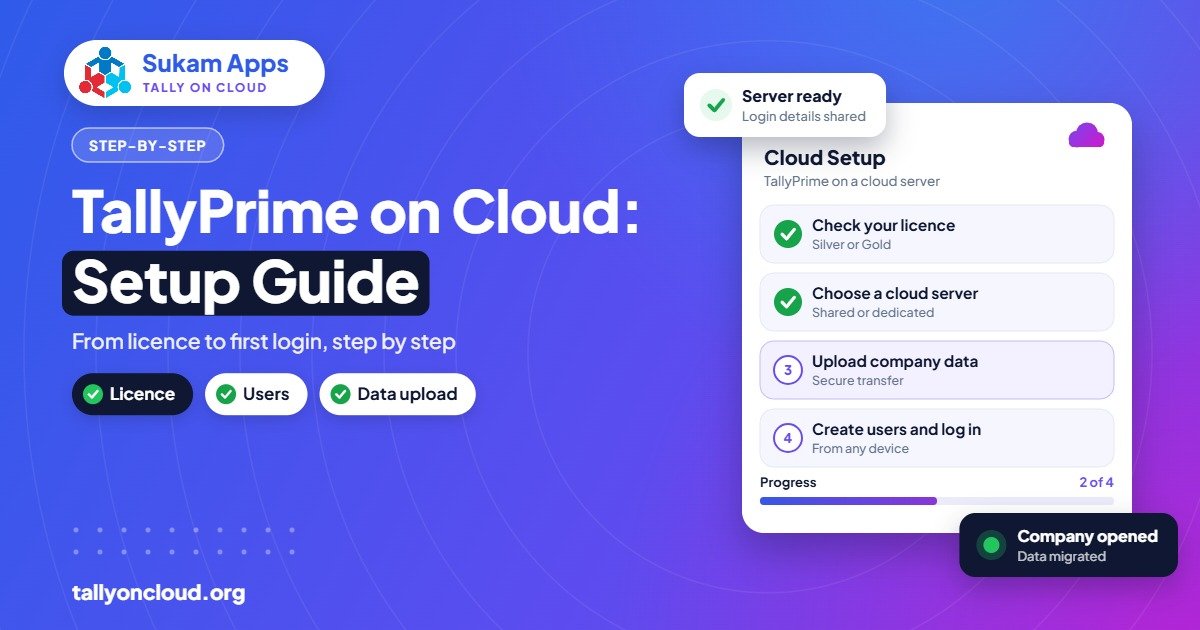
- A cloud Windows server is prepared. The provider sets up a server (shared with other clients or dedicated to you) with enough memory and storage for your company data.
- TallyPrime is installed and your licence is activated. Your existing licence is surrendered from the office PC and activated on the server, or a new licence is bought if you don’t have one.
- Your data is moved. Your company folders are copied up, checked and opened to confirm nothing is missing.
- User logins are created. Each staff member gets their own username and password to reach the server, and their own TallyPrime security level inside the company.
- You connect. On Windows, this is usually a Remote Desktop (RDP) or RemoteApp shortcut on the desktop. On Mac, Android and iPhone, you use a free remote desktop app. Some setups also allow access from a browser.
- Printing and exports are mapped. Your local printer appears inside the cloud session, so an invoice printed from Tally comes out of the printer on your counter. Excel and PDF exports can be saved back to your computer.
- Backups run automatically. A good setup takes daily backups of your company data on the server side, separate from anything you do inside TallyPrime.
Once this is done, a sales clerk in a Ludhiana hosiery unit, the owner at home in the evening, and the accountant at the CA’s office in Chandigarh can all work in the same company at the same time.
Who Needs Tally on Cloud (and Who Doesn’t)
Tally on Cloud is not compulsory. A single-person shop with one PC and no plans to grow may be perfectly fine with a local install. But it starts making real sense in situations like these:
Businesses with more than one location
A Jalandhar sports goods manufacturer with a factory on the outskirts, a showroom in the city and a godown near the highway usually ends up with three separate Tally data files that someone tallies at month end. On cloud, all three locations post into one company in real time. Stock in the godown is visible to the showroom the moment it is entered.
Owners who travel or work from home
At a trade fair or at home after 8 pm, you can check outstanding or a party ledger from your phone.
Businesses that depend on their CA
Instead of sending a backup on WhatsApp or pendrive every month, you give your CA a limited login. They check entries and prepare returns directly. We cover this in detail in our post on Tally on Cloud for CA firms.
Places with unreliable power or hardware
Industrial areas around Mandi Gobindgarh or Baddi still see voltage fluctuations and power cuts. When Tally runs on a server in a data centre, an office power cut does not corrupt the data. You reconnect from a phone hotspot and carry on.
When it may not be worth it
If you have one user, one location, fast local support, and a CA who is happy with monthly backups, a local install may cost less. Also, if your internet is truly unreliable with no backup connection, fix that first. We compare both options honestly in Tally on Cloud vs office server/LAN.
Tally on Cloud vs TallyPrime Cloud Access
Tally Solutions also offers its own service called TallyPrime Cloud Access, starting from ₹600 per user per month (excluding GST). It is a genuine, legitimate option and it is worth knowing how it differs from a hosted Tally on Cloud setup run by a service provider.
| Point | TallyPrime Cloud Access (Tally’s own) | Hosted Tally on Cloud (provider-managed) |
|---|---|---|
| Who runs it | Tally Solutions | A service provider on a cloud Windows server |
| What you get | TallyPrime delivered through Tally’s own cloud service | Your full licensed TallyPrime on a remote server via RDP/RemoteApp/browser |
| TDL add-ons and other software | Check with Tally for supported scenarios | TDLs load as on a normal PC; other tools can sit on the same server |
| Local help | Through Tally’s partner network | Depends on provider; can include on-site setup and training |
Neither is “better” for everyone. The right choice depends on your add-ons, the number of users and how much hand-holding your team needs. Read the full breakdown in TallyPrime Cloud Access vs hosted Tally on Cloud.
What Does Tally on Cloud Cost?
The cost has three parts:
- TallyPrime licence: Silver (single user) is around ₹22,500 perpetual or rental from ₹750/month; Gold (multi-user) is around ₹67,500 perpetual or rental from ₹2,250/month. Prices are official list prices excluding GST.
- TSS renewal: needed after the first year if you want new releases such as TallyPrime 7.0 features and connected services.
- Hosting: most providers in India charge roughly ₹400–₹700 per user per month for shared plans. A dedicated server for your business costs more.
For a five-user trading firm, compare this against the cost of a branded server, UPS, Windows licence, antivirus, AMC and the time someone spends fixing problems. A detailed cost walkthrough is in our Tally on Cloud price guide.
What a Good Tally on Cloud Setup Should Include
Before you sign up anywhere, make sure the setup includes:
- Daily automatic backups on the server side, with the ability to restore an older day if something goes wrong.
- Secure access from any device, with individual logins for each user (never one shared password for the whole office).
- Local printing that works with your laser, dot-matrix or thermal printer.
- Support for your own Tally licence and your existing TDL add-ons.
- A real person to call when something stops working, not a ticket number.
Security is the question most owners ask first, so we wrote a separate guide: Is Tally on Cloud safe?
Recent TallyPrime Updates Work on Cloud Too
TallyPrime 7.0 (released 19 December 2025) brought TallyDrive backups, PrimeBanking and SmartFind; 7.1 is in beta and rolling out. On a hosted setup, the upgrade is done once on the server for all users, after a backup and a TDL check, usually outside working hours.
How to Move Your Business to Tally on Cloud
- List your users and locations. Who needs access, from where, and with what rights?
- Check your licence. More than one simultaneous user needs Gold. Check if your TSS is active.
- Note your add-ons and printers. Share the list of TDL files, special invoice formats and printer models.
- Pick a migration date. Month start or after GST filing is ideal, so no entries are in flight.
- Train the team. A one-hour session on logging in, printing and saving exports avoids most early calls.
- Run both for a day. Keep the old PC read-only for a day or two while everyone gets comfortable.
If your staff are spread across branches, also read how to use multi-user TallyPrime without LAN.
More Tally on Cloud Guides
- TallyPrime on Cloud: step-by-step setup guide
- How to choose among Tally cloud service providers
- Tally on AWS: should you host TallyPrime on Amazon cloud?
- Tally cloud price: single and multi-user charges
- Tally cloud server: dedicated vs shared
Frequently Asked Questions
Is Tally on Cloud the same as Tally online?
Broadly, yes. People use “Tally online”, “Tally on cloud” and “Tally hosting” for the same idea: TallyPrime running on a remote server that you reach over the internet. Tally’s own TallyPrime Cloud Access is a separate official product.
Do I need to buy a new Tally licence?
No. Your existing TallyPrime licence can be moved to the cloud server. If you need several people working at once, you need a Gold (multi-user) licence.
Can I use Tally on Cloud on a Mac or phone?
Yes. Because Tally runs on a Windows server, you only need a remote desktop app on your Mac, Android phone or iPhone to open it.
What happens if my internet goes down?
Your data stays safe on the server. You can reconnect through a mobile hotspot or a second broadband line. Remote desktop uses very little bandwidth, so even a 4G connection usually works well.
Will my TDL add-ons and invoice formats still work?
In a hosted setup, TDLs are loaded just like on a normal PC. Share them with your provider before migration so they can be tested on the server.
Get Tally on Cloud Set Up by Sukam Apps
Sukam Apps, Jalandhar, has been helping businesses with software since 2011. We set up Tally on Cloud with your own licence, daily backups and local printing, and train your staff in Hindi or Punjabi on-site across Punjab, Chandigarh Tricity, Haryana, Delhi NCR and Himachal (Baddi, Solan). Anywhere else in India, we set it up remotely with a dedicated account manager you can call directly. WhatsApp us on +91 99142 49191 for a free demo and a quote for your user count, or contact us here.