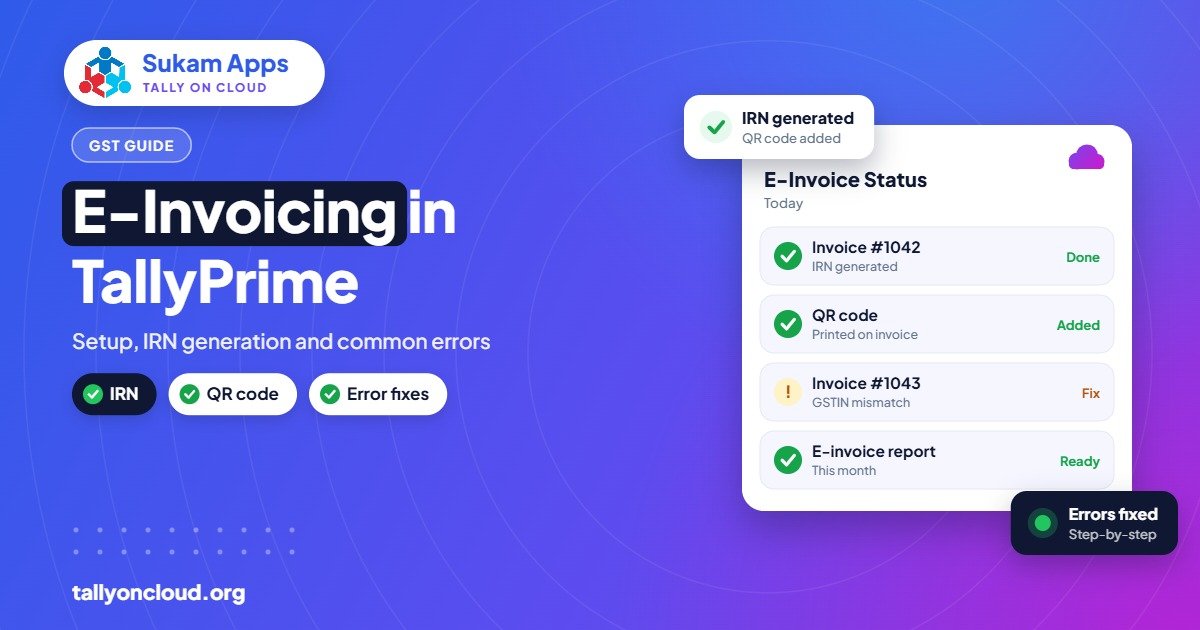
Tally e-invoice generation lets you get an IRN (Invoice Reference Number) and signed QR code for a B2B invoice directly from TallyPrime, without logging into the government portal separately. It is mandatory for businesses whose aggregate annual turnover is above ₹5 crore (since 1 August 2023). Since TallyPrime 4.0, connected e-invoicing has made IRN generation faster, and an e-invoice can be cancelled on the IRP only within 24 hours.
This guide covers who needs e-invoicing, the setup sequence in TallyPrime, how IRN generation and cancellation work, and the errors our support team sees most often from clients in Punjab, Haryana and Himachal.
Who needs e-invoicing in TallyPrime
E-invoicing applies to a business whose aggregate annual turnover (AATO) is above ₹5 crore, a limit in force since 1 August 2023. Once you cross it, your B2B invoices must be reported to the Invoice Registration Portal (IRP), which returns an IRN and a signed QR code that must appear on the invoice.
A few practical points:
- Many mid-sized units in Punjab cross the limit without noticing: a Mandi Gobindgarh steel trader or an Amritsar rice exporter can reach ₹5 crore quickly because of high ticket values.
- There are specific exemptions and special cases. Confirm your position with your CA rather than relying on a blog post.
How e-invoicing works in TallyPrime
The flow is simple once it is set up:
- You create a sales invoice in TallyPrime as usual.
- TallyPrime sends the invoice details to the IRP.
- The IRP validates the data and returns an IRN, acknowledgement number and date, and a signed QR code.
- TallyPrime saves these against the voucher and prints the QR code and IRN on the invoice.
Connected e-invoicing means TallyPrime talks to the IRP directly, so you do not export a JSON file, upload it on the portal and import the response. TallyPrime 4.0, released on 5 December 2023, made this connected IRN generation noticeably faster. If you are still on Tally.ERP 9 or an early TallyPrime release, our migration guide explains how to move up safely.
Setting up e-invoicing: the sequence
Menu names and screens vary between releases, so check TallyPrime help for the exact option at each step. The sequence we follow for clients is:
- Get e-invoice portal credentials. You need access on the e-invoice system for your GSTIN, including the API/user credentials it provides for software integration. Your CA can help if you have not used the portal before.
- Enable e-invoicing in the company’s GST details in TallyPrime, with the applicable-from date.
- Clean up masters. Party GSTINs, state, pincode and address; item HSN codes and units. This is where most later errors come from.
- Check the invoice print format so it shows the IRN, acknowledgement details and QR code.
- Create one test invoice for a known party and generate the IRN. Verify it before going live for the whole team.
- Decide who can generate and cancel IRNs. Cancellation is sensitive, so restrict it to senior users.
Generating the IRN: online, in batches, or later
TallyPrime lets you generate the IRN while saving the invoice, or later, either one at a time or for a set of pending invoices. Which one suits you depends on how you work:
| Approach | Good for | Watch out for |
|---|---|---|
| Generate on saving | Businesses that dispatch immediately after billing | An internet drop at the wrong time leaves the voucher pending |
| Generate in batches | Billing teams who create many invoices then dispatch together | Someone must check the pending list before goods leave |
| Generate after review | Businesses where a senior checks invoices first | Delays can hold up dispatch and e-way bills |
Whatever you choose, make it a daily habit to check the report of invoices still pending IRN. An invoice without an IRN, when one was required, is a compliance problem.
Cancelling an e-invoice: the 24-hour rule
An IRN can be cancelled on the IRP only within 24 hours of generation. After that, the portal will not let you cancel it, and you correct the position with a credit note (or as your CA advises) instead.
Practical tips:
- Cancel the IRN first, then cancel or alter the voucher in TallyPrime, so your books and the IRP stay in step.
- If an e-way bill was generated with the invoice, deal with it too. Our e-way bill guide explains that side.
- Do not reuse the same invoice number for a fresh invoice after cancelling unless your CA confirms it is acceptable; the IRP checks for duplicates.
Common e-invoice errors and how to fix them
The IRP returns an error code and message when it rejects an invoice. The wording changes over time, so read the actual message. These are the patterns we see most often:
1. Invalid or inactive buyer GSTIN
The party’s GSTIN is mistyped, cancelled or suspended. Verify it on the GST portal and correct the party master. TallyPrime 7.1 (beta / rolling out) adds fetching party details by GSTIN, which should reduce typing mistakes.
2. Duplicate IRN or duplicate document number
An IRN already exists for that document number and type for your GSTIN. This happens when someone deletes and re-creates an invoice with the same number, or tries to regenerate after a timeout. Check whether an IRN was in fact generated, and fetch its details rather than creating a new one.
3. HSN code missing or invalid
Every item line needs a valid HSN/SAC code in the format the portal expects. Fix it in the stock item or GST classification. TallyPrime 7.1 (beta / rolling out) adds HSN/SAC validation to catch this earlier.
4. Pincode and state mismatch
The pincode does not belong to the state in the address. A party with a Chandigarh address but a Punjab pincode, or the reverse, is common in the Tricity. Correct the party master.
5. Totals do not match
The IRP checks that item values, taxes and invoice total add up within tolerance. Manual rounding entries or unusual discounts can trip this. Review how rounding and discounts are set up in the voucher.
6. Authentication or credential errors
Wrong or expired e-invoice credentials, or a session problem. Re-check the credentials stored in TallyPrime against the portal and try again.
7. Network or timeout errors
Your internet dropped or the portal was slow. Before retrying, check whether the IRN was actually generated, to avoid a duplicate error. A stable connection matters more than a fast one; see our post on internet speed for Tally on Cloud.
E-invoicing on Tally on Cloud
On a hosted Tally on Cloud setup, TallyPrime runs on a server in a data centre with a stable internet line, and that server is what talks to the IRP. Your office connection only carries the remote screen. In practice that means fewer IRN timeouts caused by a shaky office connection, and every user works with the same TallyPrime release, so nobody is stuck on an older version with different e-invoice behaviour.
Printing still works locally: the e-invoice with its QR code prints on your office printer through printer redirection. Our guide to printing from Tally on Cloud covers that setup.
Frequently Asked Questions
What is the turnover limit for e-invoicing?
E-invoicing applies to businesses with aggregate annual turnover above ₹5 crore, a limit effective from 1 August 2023. Check special cases and exemptions with your CA.
Can I cancel an e-invoice after 24 hours?
No. The IRP allows cancellation only within 24 hours of IRN generation. After that, the usual route is a credit note or the correction your CA recommends.
Does TallyPrime generate IRN directly?
Yes. With connected e-invoicing, TallyPrime sends invoice data to the IRP and saves the returned IRN and QR code on the voucher. TallyPrime 4.0 made this faster.
Why does TallyPrime show a duplicate IRN error?
An IRN already exists for that invoice number on your GSTIN, often after a retry following a timeout or after re-creating a deleted invoice. Check and fetch the existing IRN instead of generating a new one.
Does e-invoicing work on Tally on Cloud?
Yes. It is the same licensed TallyPrime running on a remote server, so connected e-invoicing works as normal, and the server’s stable connection reduces timeouts.
Need e-invoicing set up and your team trained? Sukam Apps (since 2011) configures TallyPrime e-invoicing, cleans up masters and trains billing staff in Hindi or Punjabi, on-site across Punjab, Haryana, Himachal, Chandigarh Tricity and Delhi NCR, or remotely anywhere in India with a dedicated account manager. WhatsApp +91 99142 49191 for a free demo of TallyPrime on cloud, or visit our home page.